Small Tools That Make Windows Work Smarter
If you spend a lot of time on a Windows PC, you’ve probably run into small frustrations that add up. Managing too many open windows. Repeating the same keyboard actions. Wishing Windows had one simple feature that would save you a few clicks every hour. Microsoft PowerToys exists for exactly those moments.
PowerToys is a free set of utilities built by Microsoft to help users get more out of Windows 10 and Windows 11. It’s not flashy software, and it’s not meant for everyone. Instead, it focuses on practical improvements that quietly make everyday work faster and less annoying. Once you start using it, many of its features feel like things Windows should have included all along.
In this post, we’ll explain what Microsoft PowerToys is, what it can do, and why it’s worth considering if you care about productivity, customization, or simply making Windows feel more efficient.
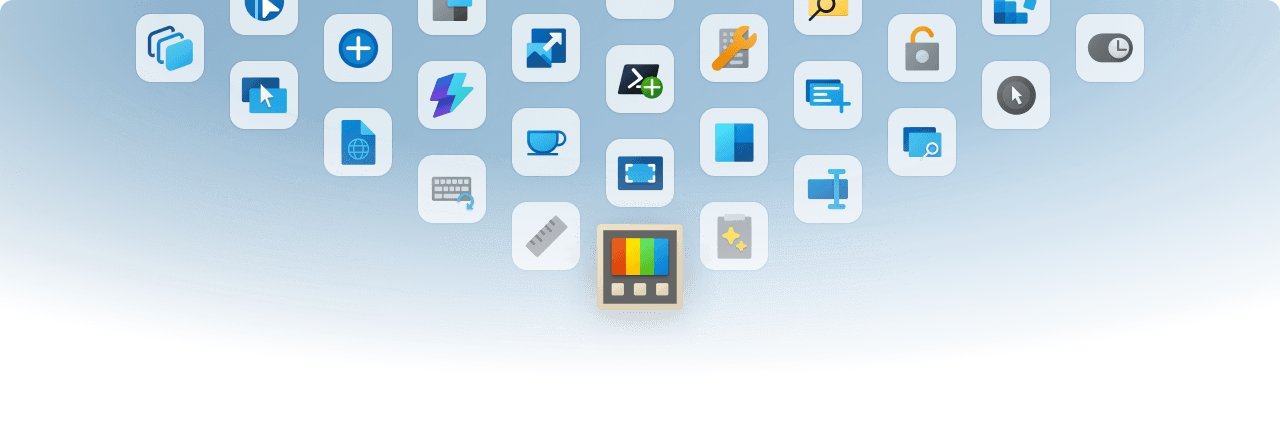
What Is Microsoft PowerToys?
Microsoft PowerToys is a free collection of system utilities designed to help users customize and streamline how Windows works. Think of it as a toolkit of optional features that sit on top of Windows, adding shortcuts, enhancements, and quality-of-life improvements that Microsoft doesn’t include by default.
PowerToys has been around in different forms since the Windows 95 era, originally aimed at advanced users who wanted more control over their systems. Today’s version is built specifically for Windows 10 and Windows 11, and it’s actively maintained by Microsoft with help from the open-source community. That means new tools are added regularly, and existing ones are refined based on real user feedback.
Each PowerToys utility solves a specific, practical problem. Some focus on window management, others on keyboard shortcuts, file handling, or quick access to apps and commands. You don’t have to use everything. You can enable only the tools you find useful and ignore the rest.
At its core, PowerToys is about efficiency. It’s for users who want Windows to adapt to how they work, not the other way around. Whether you’re managing multiple monitors, juggling lots of files, or just trying to shave a few seconds off repetitive tasks, PowerToys gives you more control without requiring deep technical knowledge.
Why Use Microsoft PowerToys?
Windows is powerful, but it often prioritizes simplicity over flexibility. For many users, that’s fine. For others, it means working around the system instead of with it. Microsoft PowerToys fills that gap by adding features that make everyday tasks faster, smoother, and more customizable.
One of the biggest reasons to use PowerToys is productivity. Simple actions like snapping windows into precise layouts, launching apps with a few keystrokes, or remapping an awkward keyboard shortcut can save small amounts of time that quickly add up. PowerToys focuses on those high-frequency actions where even minor improvements make a real difference.
Another advantage is that PowerToys replaces the need for multiple third-party tools. Many users install separate apps for window management, keyboard remapping, or image resizing. PowerToys combines those functions into a single, trusted package maintained by Microsoft. That means fewer background apps, fewer update prompts, and fewer security concerns.
PowerToys is also fully optional and customizable. You’re not forced into a new workflow or overwhelmed with features you don’t need. You can turn tools on or off at any time, adjust their settings, and tailor Windows to match how you actually work.
Ultimately, PowerToys is worth using if you like having control. It’s not about changing Windows completely. It’s about removing friction, reducing repetition, and making your system feel like it’s working for you instead of slowing you down.
Overview of Key Microsoft PowerToys Features
Microsoft PowerToys includes a wide range of utilities, each focused on a specific task or workflow improvement. Below is a complete overview of all current PowerToys features, listed in order, with a short explanation of what each one does.
Advanced Paste
Advanced Paste enhances the standard copy-and-paste experience. It allows you to paste text in different formats, transform content, or preview clipboard items before inserting them.
Always On Top
Always On Top lets you pin a window above all others using a keyboard shortcut. It’s useful for keeping reference material, chats, or monitoring tools visible at all times.
Color Picker
The Color Picker tool lets you grab exact color values from anywhere on your screen. It supports multiple color formats and is especially helpful for designers and developers.
Command Not Found
Command Not Found helps diagnose failed commands in the command line by suggesting possible fixes or missing tools, saving time when working in terminal environments.
Command Palette
Command Palette provides a centralized, keyboard-driven interface for launching commands, apps, and actions. It’s designed for fast navigation without relying on the mouse.
Crop And Lock
Crop And Lock allows you to crop a window and keep only a specific portion visible on your screen. This is useful when monitoring a single section of an app or dashboard.
Environment Variables
The Environment Variables tool provides a clearer interface for viewing and editing system and user environment variables without digging through system dialogs.
FancyZones
FancyZones expands Windows’ snapping capabilities by letting you create custom window layouts. It’s ideal for large monitors, ultrawide screens, and multi-monitor setups.
File Explorer Add-ons
File Explorer add-ons add preview support for additional file types, such as SVG and Markdown files, directly inside File Explorer.
File Locksmith
File Locksmith shows which processes are currently using a file. This helps when you can’t delete, move, or modify a file because it’s locked by another app.
Hosts File Editor
The Hosts File Editor provides a safe, user-friendly way to view and edit the Windows hosts file without manually opening it in a text editor.
Image Resizer
Image Resizer adds a right-click option in File Explorer to quickly resize images without opening a separate image-editing application.
Keyboard Manager
Keyboard Manager allows you to remap individual keys or keyboard shortcuts. It’s useful for customization, accessibility, and fixing awkward or unused keys.
Light Switch
Light Switch adds quick controls for switching between light and dark modes, making it easier to adjust display settings on the fly.
Mouse Utilities
Mouse Utilities include tools like cursor highlighting and quick mouse location features, which help improve visibility during presentations or on high-resolution screens.
Mouse Without Borders
Mouse Without Borders lets you control multiple computers with a single mouse and keyboard, making it easier to work across systems.
New+
New+ expands the File Explorer “New” menu with customizable templates, allowing faster creation of common file types.
Peek
Peek lets you quickly preview a file’s contents using a keyboard shortcut without fully opening it in an application.
PowerRename
PowerRename enables advanced bulk file renaming with search, replace, and pattern matching, directly from File Explorer.
PowerToys Awake
PowerToys Awake keeps your PC awake without changing system power settings. It’s useful for long-running tasks, downloads, or presentations.
PowerToys Run
PowerToys Run is a fast launcher for apps, files, folders, and commands, activated by a keyboard shortcut for quick access.
Quick Accent
Quick Accent makes it easier to type accented characters by holding down a key and selecting the desired accent.
Registry Preview
Registry Preview allows you to view and explore Windows registry files safely without immediately applying changes.
Screen Ruler
Screen Ruler lets you measure distances in pixels on your screen, which is helpful for design, layout, and alignment tasks.
Shortcut Guide
Shortcut Guide displays a quick overlay of available Windows keyboard shortcuts when holding down the Windows key.
Text Extractor
Text Extractor lets you copy text from images, videos, or anywhere on the screen, even when standard text selection isn’t possible.
Workspaces
Workspaces allows you to save and restore groups of apps and window layouts, making it easier to jump back into specific tasks or projects.
ZoomIt
ZoomIt provides screen zooming, drawing, and annotation tools, commonly used during presentations, demos, or screen sharing.
Together, these tools give PowerToys its strength: small, focused utilities that add up to a more efficient and customizable Windows experience.
How Microsoft PowerToys Improves Everyday Workflows
The real value of Microsoft PowerToys shows up in day-to-day use. It’s not about learning new software or changing how you work. It’s about removing small obstacles that slow you down over and over again.
For everyday users, PowerToys makes multitasking easier. Tools like FancyZones help keep windows organized instead of stacked and overlapping. PowerToys Run reduces time spent hunting through menus or the taskbar. Simple actions feel quicker and more deliberate, especially when working on larger screens.
For developers and technical users, the gains are even more noticeable. Remapping keys with Keyboard Manager can make coding shortcuts more comfortable. Text Extractor saves time when pulling error messages or code snippets from screenshots. Keeping a terminal or documentation window pinned with Always on Top helps maintain focus without constant window switching.
PowerToys also improves repetitive tasks. Resizing images, previewing files, or launching tools becomes almost automatic. These aren’t dramatic changes, but they add consistency and reduce mental load. You spend less time managing the system and more time actually getting work done.
Over time, PowerToys helps Windows feel predictable and personalized. Instead of adapting to the operating system’s limits, the system adapts to you. That’s what turns a collection of small utilities into a meaningful productivity upgrade.
Installation and Setup
Getting started with Microsoft PowerToys is straightforward and only takes a few minutes. Microsoft offers it as a free download, and it installs like any standard Windows application.
PowerToys is available for Windows 10 and Windows 11. Once installed, it runs quietly in the background and can be accessed at any time from the system tray. There’s no forced configuration or setup wizard, which makes it easy to explore at your own pace.
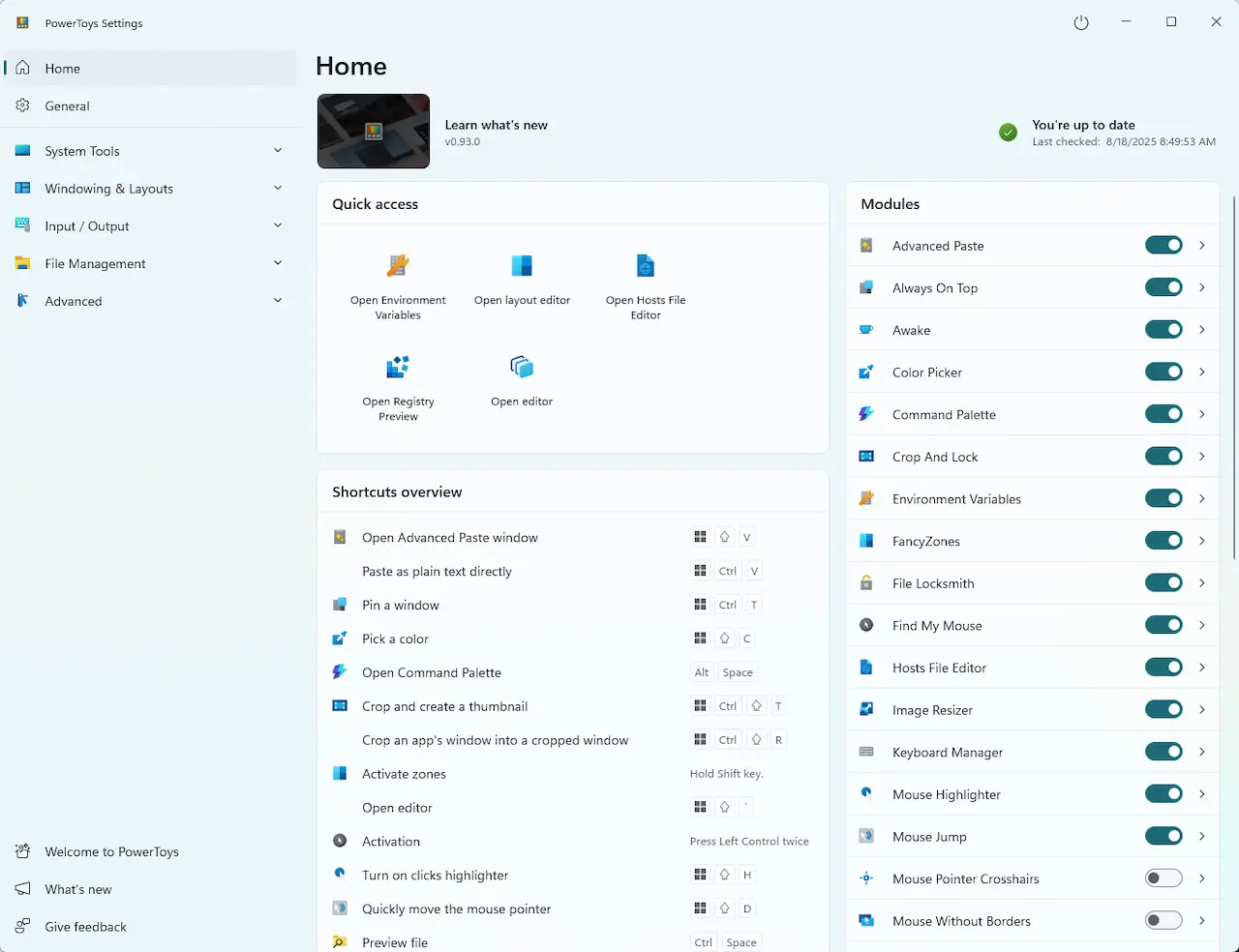
The PowerToys settings panel is where everything happens. Each utility has its own section with clear descriptions and simple toggles. You can enable only the tools you want and leave the rest turned off. Most features work immediately, while others let you adjust shortcuts, behavior, or layout options to match your workflow.
Updates are handled automatically, so you don’t have to worry about manually downloading new versions. Microsoft regularly adds new utilities and improves existing ones, which means PowerToys tends to get more useful over time without extra effort from you.
For first-time users, the best approach is to enable one or two features, use them for a few days, and then explore more. PowerToys works best when it’s gradually integrated into how you already use Windows.
Tips for Getting the Most Out of Microsoft PowerToys
PowerToys is easy to install, but a few smart choices can make it far more useful. The goal isn’t to turn on everything. It’s to focus on the tools that actually improve how you work.
Start by enabling FancyZones, PowerToys Run, and Keyboard Manager. These features tend to deliver the biggest productivity gains right away. Spend a little time adjusting their shortcuts and settings so they feel natural. A shortcut you remember and enjoy using is far more valuable than one that looks good on paper.
Pay attention to performance settings. PowerToys is lightweight, but disabling features you don’t use helps keep things clean and simple. If a tool doesn’t fit your workflow, turn it off. You can always come back to it later.
It’s also worth revisiting PowerToys after updates. Microsoft often adds new utilities or expands existing ones, and features that didn’t matter to you before might suddenly become useful. Skimming the release notes once in a while can uncover helpful additions.
Most importantly, give yourself time to build habits. PowerToys works best when its tools become second nature. Once that happens, Windows feels faster, smoother, and more responsive without any extra effort.
Microsoft PowerToys vs Other Windows Utilities
Windows includes a growing number of built-in productivity features, but they’re often designed for the average user. Microsoft PowerToys goes a step further by offering deeper customization and more control without requiring third-party software.
Compared to built-in tools like Snap Layouts or basic keyboard shortcuts, PowerToys gives you more flexibility. FancyZones allows precise window layouts instead of fixed snapping options. Keyboard Manager lets you redefine keys entirely, something Windows doesn’t natively support at the same level. These differences matter if you want Windows to match how you work instead of forcing you into preset behaviors.
Many users rely on third-party utilities for similar features. While those tools can be powerful, they often come with trade-offs like ads, subscriptions, inconsistent updates, or unclear security practices. PowerToys stands out because it’s free, open-source, and maintained by Microsoft, which makes it easier to trust and simpler to manage.
That said, PowerToys isn’t a replacement for everything. Specialized tools may still be better for advanced automation, scripting, or niche workflows. PowerToys works best as a foundation—handling common productivity needs while reducing the number of extra apps you have to install.
For most users, PowerToys strikes a strong balance between simplicity and control. It adds meaningful functionality without cluttering the system or getting in the way.
Is Microsoft PowerToys Worth Using?
For most Windows users who value efficiency, Microsoft PowerToys is absolutely worth using. It’s free, lightweight, and designed to solve real problems that show up during everyday work. You don’t need to be a power user to benefit, but if you enjoy shortcuts, customization, or smoother workflows, PowerToys fits naturally.
The biggest strengths of PowerToys are flexibility and control. You choose which tools to enable, how they behave, and when they’re active. There’s no pressure to adopt a completely new system, and nothing breaks if you decide a feature isn’t for you. You can turn it off and move on.
There are a few downsides to consider. Some features may feel unnecessary if you prefer a very minimal setup. Others take a bit of time to configure before they feel intuitive. And if you never customize Windows or rely heavily on keyboard shortcuts, you may not notice as much value.
Overall, PowerToys makes the most sense for users who spend hours on their PC and want Windows to feel more responsive and personalized. If small improvements matter to you, PowerToys delivers more value than most utilities with very little downside.
A Smarter, More Personal Windows Experience
Microsoft PowerToys doesn’t try to reinvent Windows. Instead, it quietly improves it in ways that feel thoughtful and practical. Each tool focuses on a real friction point, whether that’s managing windows, speeding up navigation, or reducing repetitive tasks.
What makes PowerToys stand out is how optional everything is. You’re never forced into a new workflow. You add what helps, ignore what doesn’t, and adjust things as your needs change. Over time, those small changes add up to a system that feels faster, calmer, and more in tune with how you actually work.
If you’ve ever thought, “Windows should really do this,” there’s a good chance PowerToys already does. And if it doesn’t yet, it probably will. For anyone who spends serious time on a Windows PC, PowerToys is one of the simplest ways to make the experience better without adding clutter or complexity.