
Keeping devices running smoothly takes more than occasional cleanup, especially when performance issues appear across both computers and mobile devices. Norton Utilities Ultimate is designed to simplify this process by offering tools that help maintain performance on Windows PCs as well as supported Android and iOS devices. As software clutter builds up over time, a consistent maintenance approach becomes increasingly important.
Introduction to PC Optimization Software
Windows computers rarely slow down all at once. Instead, performance drops gradually. Startup times increase, apps take longer to open, and systems feel less responsive. In most cases, hardware still works fine. Software buildup usually causes the problem.
As users install and remove programs, systems collect temporary files, leftover data, and unused background services. In addition, many apps add themselves to startup automatically. Over time, this activity strains system resources and affects performance.
Similar issues appear on mobile devices, although in different ways. Android devices often struggle with background apps and storage clutter. Meanwhile, iOS devices mainly face space limitations caused by photos and videos. Because of this, optimization tools must adapt to each platform rather than follow a single approach.
Built-in system tools offer basic maintenance options. However, they often require manual effort and work in isolation. As a result, many users overlook routine cleanup across their devices. Dedicated optimization software addresses this gap by managing performance more consistently.
The goal of this guide is to explain how optimization software works across platforms, which problems it solves, and what results users can realistically expect. This helps readers decide whether a unified maintenance tool fits their device ecosystem.
What Is Norton Utilities Ultimate?

Norton Utilities Ultimate is a Windows optimization tool designed to improve system performance over time. Instead of addressing one issue, it combines several maintenance features into one application. As a result, users can manage performance from a single interface.
The Norton software targets common causes of slowdown. For example, it identifies unnecessary background processes and startup programs. In addition, it handles junk files, unused applications, and configuration problems. By addressing these areas, it improves daily system responsiveness.
Many cleanup tools focus only on temporary files. However, this software takes a broader approach. It supports ongoing maintenance rather than one-time fixes. Therefore, users can apply changes manually or rely on automation.
However, this software tool does not act as antivirus software. Instead, it complements security tools by improving how Windows functions day to day.
Ease of use remains a core design goal. For instance, beginners can follow guided recommendations. Meanwhile, advanced users can review detailed findings and choose specific actions. Because of this, the software fits different skill levels.
In addition to Windows maintenance, the software also includes tools designed for Android and iOS devices, adapted to each platform’s limitations.
Practically, Norton Utilities Ultimate suits users who notice slower startups or reduced responsiveness. In many cases, the hardware still performs well. Instead, software inefficiencies cause the slowdown. Therefore, the tool works best as a long-term maintenance solution rather than a quick fix.
Want to understand how device optimization works across Windows, Android, and iOS?
👉 Explore Norton Utilities Ultimate on the official Norton website
Cross-Platform Support: Windows, Android, and iOS

Unlike many system optimization tools, Norton Utilities Ultimate does not focus on Windows alone. Instead, it provides maintenance tools for multiple device types. As a result, users can manage performance across desktops and mobile devices under one subscription.
Each platform includes features tailored to how that system works. Therefore, tools differ slightly between Windows, Android, and iOS. This approach avoids forcing desktop-style optimization onto mobile devices.
Windows Device Optimization
On Windows, the software delivers the most comprehensive feature set. It focuses on system performance, storage management, and stability.
Key Windows features include process management, startup optimization, system junk cleanup, and automatic cleaning. In addition, users can uninstall unwanted programs and optimize traditional hard drives. Data recovery tools are also available for supported storage devices.
Because Windows systems accumulate background processes over time, these tools help reduce unnecessary load. As a result, startup times improve and daily use feels more responsive.
Android Device Optimization
Android devices face a different challenge. Apps often run in the background and consume resources silently. Because of this, optimization focuses on controlling app behavior and reclaiming storage.
On Android, Norton Utilities Ultimate includes Sleep Mode to stop apps from running automatically. In addition, system junk removal, uninstaller tools, and automatic cleaning help free up space. Browser data cleanup also improves privacy.
Media files often take up the most space on mobile devices. Therefore, cleanup tools help users identify large or unnecessary files. As a result, devices feel smoother and storage lasts longer.
iOS Device Optimization
iOS handles system processes differently than Windows or Android. Because of this, optimization focuses less on background control and more on storage cleanup.
On iOS, the primary feature is Media Cleaner. It helps users review photos and videos that consume large amounts of space. By removing duplicates or unwanted media, users regain storage without affecting system stability.
This approach fits iOS restrictions while still delivering practical benefits. As a result, users can manage storage without compromising device safety.
One Subscription, Multiple Devices
A major advantage of this cross-platform design is simplicity. Instead of managing separate tools for each device, users rely on one service. Therefore, maintenance becomes easier to track and maintain.
The interface remains consistent across platforms. Because of this, users do not need to relearn tools when switching devices. Overall, Norton Utilities Ultimate supports a unified approach to device performance, regardless of operating system.
Platform Feature Comparison: Windows vs Android vs iOS
This table helps readers quickly understand what each platform supports, without repeating content elsewhere.
| Feature / Platform | Windows | Android | iOS |
|---|---|---|---|
| Process management | ✅ Yes | ⚠️ Limited (Sleep Mode) | ❌ No |
| Startup optimization | ✅ Yes | ❌ No | ❌ No |
| System junk cleanup | ✅ Yes | ✅ Yes | ❌ No |
| App uninstaller | ✅ Yes | ✅ Yes | ❌ No |
| Automatic cleaning | ✅ Yes | ✅ Yes | ❌ No |
| Browser data cleanup | ✅ Yes | ✅ Yes | ❌ No |
| Media cleanup | ❌ No | ✅ Yes | ✅ Yes |
| Data recovery | ✅ Yes | ❌ No | ❌ No |
| Disk optimization | ✅ Yes | ❌ No | ❌ No |
Note: Features vary by operating system due to platform restrictions.
How Norton Utilities Approaches System Optimization
Norton Utilities approaches system optimization with a focus on prevention rather than repair. Instead of waiting for major slowdowns, the software targets small performance issues early. As a result, systems stay responsive for longer periods.
Many PCs slow down because background activity increases over time. For example, apps run services even when users no longer need them. In addition, startup programs pile up quietly. Because of this, system resources get stretched thin. Norton Utilities addresses these problems by identifying tasks that no longer provide value.
Rather than applying aggressive changes, the software uses controlled optimization steps. For instance, it highlights resource-heavy processes before making adjustments. Therefore, users can review recommendations instead of guessing. This approach reduces the risk of system instability.
Automation plays a central role in the optimization strategy. However, the software does not remove user control. Instead, it allows users to choose how much automation they want. For this reason, beginners can rely on scheduled tasks, while advanced users can fine-tune settings.
Another key element involves long-term system awareness. The software monitors performance trends instead of reacting to single events. As a result, it can spot gradual changes that often go unnoticed. This helps prevent slowdowns before they become frustrating.
The tool also avoids one-size-fits-all fixes. For example, it treats startup optimization differently from disk cleanup. In addition, it adapts recommendations based on system behavior. Because of this, optimizations feel targeted rather than generic.
Overall, Norton Utilities approaches system optimization as an ongoing process. It focuses on consistency, safety, and visibility. Therefore, users gain better control over performance without needing deep technical expertise.
Performance Monitoring and Resource Management
Performance optimization starts with understanding what the system is doing at any given moment. Without clear insight, users often guess which processes cause slowdowns. As a result, they may disable the wrong apps or overlook the real problem. This section explains how performance monitoring and resource management work together to support smarter optimization.

Real-Time System Insight
Real-time monitoring focuses on tracking how the system behaves during normal use. Instead of relying on occasional checks, live data shows what happens as users open apps, browse the web, or multitask. Because of this, performance issues become easier to spot early.
The software tracks several key system metrics. These include CPU usage, memory consumption, disk activity, and background process behavior. In addition, it monitors how many tasks run at startup and how long they remain active. Each metric helps reveal where resources go during everyday operation.
Live monitoring matters because performance problems rarely appear all at once. For example, a single app may increase memory usage slightly. However, when several apps do the same thing, the system slows down. By watching these changes in real time, users can see patterns instead of isolated numbers.
Another benefit involves timing. Some processes only cause problems during startup or heavy workloads. Static reports may miss these moments. Therefore, real-time insight provides a more accurate picture of system health. As a result, optimization decisions rely on actual behavior rather than assumptions.
CPU and Memory Optimization
CPU and memory usage directly affect how responsive a PC feels. When background processes consume too many resources, active programs struggle to perform well. Because of this, effective optimization focuses on balancing resource use.
Background process management plays a key role here. Many applications run helper services even when users do not actively use them. In addition, some processes restart automatically after updates. By identifying these tasks, users can reduce unnecessary load without breaking essential functions.
Memory optimization also improves multitasking. When memory fills up, Windows shifts more work to the disk. Consequently, apps respond more slowly and switching tasks feels delayed. By limiting memory-heavy background activity, more resources remain available for active programs.
CPU optimization follows a similar principle. Short spikes usually cause no issues. However, constant high usage signals inefficiency. Therefore, managing long-running processes helps maintain steady performance during demanding tasks.
Overall, CPU and memory optimization work best when paired with monitoring. Together, they help users understand why slowdowns happen and how to address them. As a result, multitasking becomes smoother and system responsiveness improves without drastic changes.
Startup Optimization and Boot-Time Improvements

Startup behavior plays a major role in how fast a PC feels. Even powerful systems can feel slow if too many programs load at once. Because of this, startup optimization often delivers noticeable improvements early on.
Many applications add themselves to startup during installation. For example, update checkers, background services, and helper tools launch automatically. Over time, these programs compete for system resources. As a result, boot times increase and responsiveness drops right after login.
Why Startup Programs Slow Down Windows
When Windows starts, it loads essential system services first. After that, it launches third-party programs set to run at startup. Each additional program increases load on the CPU, memory, and disk. Therefore, the system takes longer to reach a usable state.
Some startup programs serve a clear purpose. For instance, security software needs to load early. However, many others provide little benefit during startup. In addition, users often forget these programs exist. Because of this, startup lists grow without review.
Startup congestion also affects stability. When too many programs launch at once, conflicts may occur. As a result, some apps load slowly or fail to start properly. This can create a sluggish experience immediately after boot.
Startup Manager in Norton Utilities Ultimate
The startup manager in Norton Utilities Ultimate helps users regain control over boot behavior. Instead of forcing immediate changes, it shows which programs run at startup and how they affect performance. As a result, users can make informed decisions.
The tool identifies unnecessary or low-priority startup entries. For example, it highlights apps that users rarely open. In addition, it shows programs that delay startup without providing clear value. This visibility makes optimization safer and more effective.
Users can disable or delay selected startup programs. Delaying allows Windows to finish loading before non-essential apps start. Therefore, the system becomes usable faster without breaking functionality.
Overall, startup optimization improves first impressions. Faster boot times reduce frustration and improve daily workflow. Because startup behavior affects every session, even small improvements can feel significant over time.
If background apps, storage clutter, or slow startups affect your devices, Norton Utilities Ultimate offers tools designed to address those issues.
👉 View features and supported devices on Norton.com
Disk Cleanup and Storage Optimization
Storage clutter affects performance more than many users realize. When disks fill up with unnecessary files, systems take longer to read and write data. As a result, apps load more slowly and updates take longer to complete. Disk cleanup and storage optimization address these issues directly.
Temporary files and leftover data accumulate during normal use. For example, browsers store cache files and installers leave behind setup data. In addition, system logs grow over time. Because these files serve little long-term purpose, removing them helps free space and reduce disk activity.

How Junk Files Accumulate
Everyday tasks create junk files quietly. When users browse the web, cache files store images and scripts. When apps update, old versions remain behind. Over time, these files pile up and consume valuable storage.
Uninstalled programs also leave traces. For instance, configuration files and folders may stay on the system. In addition, crash reports and error logs continue to grow. As a result, disk usage increases without clear benefit.
This buildup affects more than storage space. When disks become crowded, file access slows down. Therefore, even simple tasks may feel delayed. Regular cleanup helps prevent this gradual slowdown.
Cleanup Tools in Norton Utilities Ultimate
The cleanup tools in Norton Utilities focus on removing safe-to-delete files without risking important data. Instead of deleting everything blindly, the software scans for known junk categories. As a result, users avoid accidental data loss.
These tools target temporary files, cache data, old logs, and leftover installation files. In addition, they apply safety checks before removal. Therefore, system stability remains intact while storage space increases.
Cleanup also improves system efficiency. With fewer unnecessary files, disks respond faster. Consequently, apps launch more quickly and system tasks complete with less delay.
Disk Optimization Considerations
Disk optimization works differently depending on storage type. Traditional hard drives benefit from organization and cleanup. However, solid-state drives focus more on free space than file placement. Because of this, optimization avoids unnecessary operations on SSDs.
Free space plays a key role for all storage types. When space runs low, Windows struggles to manage temporary data. Therefore, maintaining available storage helps prevent performance dips.
Overall, disk cleanup and storage optimization support long-term performance. They reduce clutter, improve responsiveness, and create a healthier system environment. As a result, everyday tasks feel smoother and more reliable.
Application and Software Management Tools
Applications play a major role in system performance. Over time, many users install software they rarely use. As a result, systems carry extra programs that consume resources in the background. Application and software management tools help identify and control this hidden load.
Unused programs often affect performance without obvious signs. For example, some apps run update services or background helpers. In addition, others reserve storage space long after users stop opening them. Because of this, managing installed software becomes an important optimization step.
Identifying Unused or Resource-Heavy Apps
The software tracks how often applications run and how much impact they have on system resources. Instead of guessing, users can see which programs rarely open and which consume CPU or memory. This visibility makes cleanup decisions easier.
Resource-heavy apps stand out during monitoring. For instance, a rarely used program may still run background tasks. In addition, some applications start with Windows even when users don’t need them. By spotting these patterns, users can reduce unnecessary system load.
Identifying unused software also improves organization. Removing cluttered app lists simplifies system management. Therefore, users gain both performance and clarity.
Deep Uninstall Capabilities
Standard uninstallers often leave files behind. However, deep uninstall tools aim to remove all associated data. This includes leftover folders, configuration files, and registry entries. As a result, systems stay cleaner after removal.
The uninstall process focuses on safety. Before removal, the software identifies related components. In addition, it avoids deleting shared system files. Because of this, users can remove programs without risking system stability.
Deep uninstalling also frees up storage space. Leftover files may seem small, but they add up over time. Therefore, thorough removal supports long-term disk efficiency.
Overall, application and software management tools give users greater control. They help reduce background activity, reclaim storage, and simplify system maintenance. As a result, PCs remain responsive and easier to manage over time.
Registry Cleaning and System Configuration
The Windows registry plays a central role in how the operating system functions. It stores settings for Windows itself, hardware components, and installed applications. Because of this, changes to the registry happen constantly during normal use. Over time, this activity can lead to unnecessary or outdated entries.
Registry clutter often appears after software installation and removal. For example, programs add configuration values during setup. However, uninstallers do not always remove every entry. As a result, the registry grows larger and less organized.
Understanding the Windows Registry
The registry acts as a database for system settings. It tells Windows how to load software, manage hardware, and apply user preferences. Without it, many programs would not function correctly.
Although the registry handles these tasks efficiently, it does not clean itself. Therefore, unused entries remain after apps are removed. In addition, failed installations and crashes can create invalid references. Over time, these entries serve no purpose.
Most users never interact with the registry directly. However, its condition still affects system behavior. When the registry becomes cluttered, system lookups may take longer. Consequently, startup and app launches can feel slower.
Registry Maintenance Features
Registry maintenance tools focus on identifying invalid, orphaned, or outdated entries. Instead of changing active settings, they target references that point to missing files or removed programs. As a result, cleanup stays limited and controlled.
Safety remains a priority during registry maintenance. Before making changes, the software creates backups. Therefore, users can restore previous states if needed. This reduces risk and builds confidence.
Registry cleaning does not produce dramatic performance gains on its own. However, it supports overall system health. When combined with other optimization steps, it helps reduce errors and improve consistency.
Overall, registry cleaning and system configuration tools aim to keep Windows organized. They remove unnecessary data while preserving essential settings. As a result, the system runs more smoothly and remains easier to maintain over time.
If your devices feel slower over time, Norton Utilities Ultimate offers tools designed to help maintain performance across Windows, Android, and iOS.
👉 Learn more on the official Norton website
Privacy Cleanup and Data Removal
Privacy often gets overlooked during system maintenance. However, Windows and installed applications store a large amount of user activity data. Over time, this information builds up and remains accessible. Because of this, privacy cleanup plays an important role in overall system management.
Many everyday actions leave traces behind. For example, browsers save history, cookies, and cached files. In addition, apps log usage patterns and recent activity. While this data may improve convenience, it can also expose personal information. Therefore, removing it regularly improves privacy.
Common Privacy Traces on Windows PCs
Web browsers create the largest share of privacy data. They store visited pages, saved form entries, and session information. As a result, anyone with access to the system can view browsing activity.
Applications also record usage history. For instance, media players track recently opened files. In addition, document editors store file paths and access times. These traces may seem harmless, but they reveal behavior patterns.
Windows itself contributes to this buildup. System logs and temporary user data remain stored unless removed. Therefore, privacy traces continue to grow even without active browsing.
Privacy Tools in Norton Utilities Ultimate
The privacy tools in Norton Utilities Ultimate focus on clearing activity traces safely. Instead of deleting random files, the software targets known privacy-related data. As a result, cleanup remains predictable and controlled.
These tools remove browser history, cached data, and app usage traces. In addition, they handle temporary user files created during normal system use. Because of this, privacy improves without affecting core functionality.
Privacy cleanup also supports shared systems. On family or work PCs, multiple users may access the same device. Therefore, removing personal traces helps protect sensitive information.
Overall, privacy cleanup and data removal improve control over personal information. They reduce stored activity data while maintaining usability. As a result, users gain a cleaner and more private system environment.
System Stability and Error Prevention
System stability affects how reliable a PC feels during daily use. Even small errors can lead to crashes, freezes, or unexpected behavior. Because of this, stability and error prevention remain essential parts of system optimization.
Many stability issues develop slowly. For example, conflicting software settings may appear after updates. In addition, incomplete installations can leave systems in an unstable state. Over time, these problems increase the risk of errors.
Common Causes of System Errors
Software conflicts rank among the most common causes of instability. When multiple programs try to access the same resources, errors may occur. As a result, apps may crash or fail to respond.
Corrupt or missing files also create problems. These issues often appear after forced shutdowns or failed updates. Therefore, systems may behave unpredictably during normal tasks.
Improper startup behavior contributes as well. When too many programs load at once, some may fail to initialize correctly. Consequently, error messages and slow performance become more frequent.
Stability Enhancements and Preventive Measures
Stability tools focus on identifying inconsistencies before they cause failures. Instead of reacting to crashes, the software highlights warning signs early. As a result, users can take corrective action sooner.
Preventive maintenance plays a key role here. By keeping startup behavior, background processes, and system files in check, errors become less likely. In addition, routine cleanup reduces conflicts caused by outdated data.
Another important factor involves consistency. Systems that receive regular maintenance behave more predictably. Therefore, stability improves as part of ongoing optimization rather than one-time fixes.
Overall, system stability and error prevention help create a smoother computing experience. They reduce interruptions and protect workflows. As a result, users spend less time troubleshooting and more time using their PCs effectively.
Automation and Scheduled Maintenance
Regular system maintenance produces the best results when it happens consistently. However, many users forget to run cleanup or optimization tasks. Because of this, automation becomes an essential part of long-term performance management.
Manual maintenance requires time and attention. For example, users must remember when to clean files or review startup programs. In addition, inconsistent schedules lead to uneven results. Therefore, automated maintenance helps remove this burden.
Automation also plays a role on Android devices, where cleaning and app control can run with minimal user input.
Automatic Cleaning and Optimization
Automation allows maintenance tasks to run on a set schedule. Instead of waiting for performance to drop, the system performs cleanup regularly. As a result, small issues never grow into larger problems.
Automated tasks can include junk file removal, privacy cleanup, and performance checks. In addition, these tasks run quietly in the background. Because of this, users do not need to interrupt their work.
Automation also reduces user error. By following predefined rules, the software avoids risky actions. Therefore, optimization stays safe and predictable.
Benefits of Set-and-Forget Optimization
Set-and-forget optimization suits users who prefer simplicity. Once configured, maintenance continues without ongoing input. As a result, systems stay cleaner with minimal effort.
This approach benefits non-technical users the most. They gain performance improvements without learning complex settings. Meanwhile, advanced users still retain control when needed.
Consistency remains the biggest advantage. Because maintenance happens regularly, performance stays stable over time. Therefore, automation supports both convenience and reliability in daily system use.
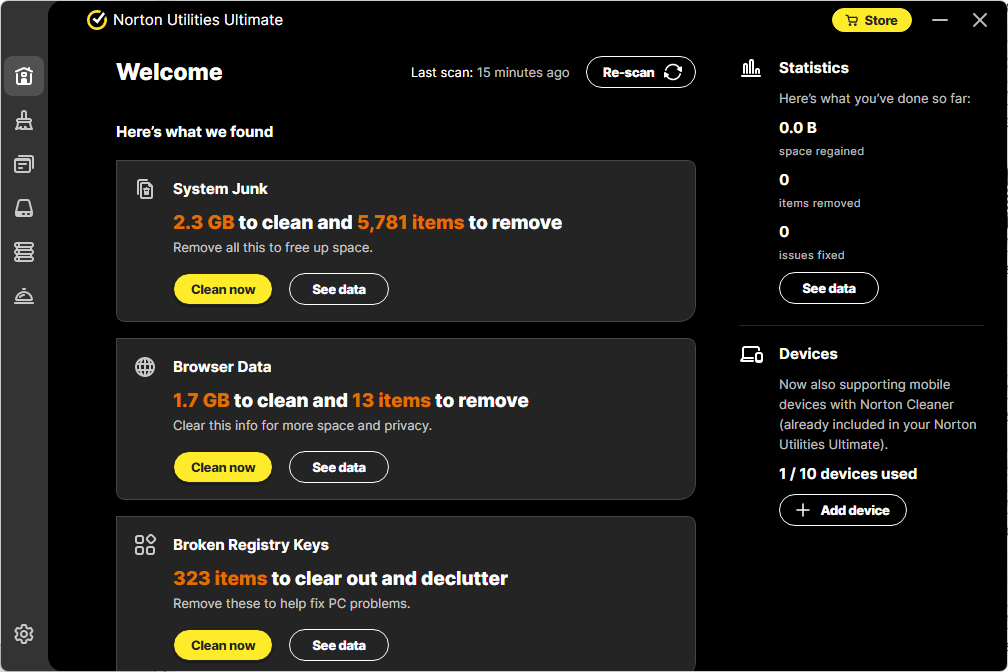
To validate how the software behaves outside of product descriptions, we spent time testing Norton Utilities Ultimate on our own system.
The results revealed detailed findings across browser data, system junk, registry entries, and background processes.
👉 Read our full hands-on Norton Utilities Ultimate test and scan breakdown
User Interface and Ease of Use
A powerful optimization tool still needs a clear interface to be effective. If users struggle to navigate settings, performance improvements become harder to achieve. Because of this, usability plays a major role in system maintenance.
A well-designed interface helps users understand what the software does. Instead of hiding information, it presents data in a clear way. As a result, users can make decisions with confidence rather than confusion.
The main dashboard focuses on system status at a glance. For example, it highlights areas that need attention and shows recent activity. In addition, visual indicators help users understand performance trends quickly. This layout reduces the learning curve.
Navigation follows a logical structure. Tools remain grouped by function rather than scattered across menus. Therefore, users can find cleanup, optimization, and monitoring features without searching. This organization saves time during routine maintenance.
Ease of use also benefits beginners. Guided recommendations explain what needs attention and why it matters. As a result, new users can take action without technical knowledge. Meanwhile, advanced users can access deeper settings when needed.
Another important factor involves clarity. Descriptions avoid technical jargon where possible. Instead, they focus on practical outcomes. Because of this, users understand the impact of each action before applying it.
Overall, a clean and intuitive interface improves trust and adoption. It encourages regular use and reduces mistakes. As a result, system optimization becomes a manageable and consistent process rather than a chore.
Performance Impact: What Users Can Expect
Performance improvements often depend on system condition and usage habits. Because of this, expectations should remain realistic. Optimization improves efficiency, but it does not transform hardware limits.
Users with heavily used systems often notice the biggest changes. For example, startup may feel faster and apps may open more smoothly. In addition, background activity becomes more controlled. As a result, daily tasks feel less frustrating.
Newer systems may show smaller gains. However, optimization still helps maintain consistency. By preventing clutter buildup, performance stays closer to original levels. Therefore, benefits appear over time rather than immediately.
Older PCs often benefit the most. When hardware remains functional, software cleanup removes bottlenecks. Consequently, systems regain responsiveness without upgrades. This can extend usable life and delay replacement costs.
Multitasking also improves in many cases. With fewer background processes competing for resources, active programs respond faster. As a result, switching between tasks feels smoother.
It is important to note that results vary. Some systems suffer from hardware issues or outdated components. In these cases, optimization cannot solve every problem. However, it still helps reduce unnecessary strain.
Overall, users can expect steadier performance rather than dramatic speed boosts. The goal focuses on stability, responsiveness, and consistency. Therefore, optimization supports better daily use rather than instant transformation.
Managing performance across multiple devices doesn’t have to be complicated. Norton Utilities Ultimate provides a single solution for PCs and mobile devices.
👉 See how it works on the official Norton Utilities page
Use Cases and Ideal User Profiles
Different users experience performance issues for different reasons. Because of this, optimization tools serve a wide range of needs. Understanding common use cases helps determine who benefits the most.
Some users rely on their PCs for simple tasks. Others push systems with demanding workloads. Therefore, optimization must adapt to different usage patterns rather than follow one approach.
Mobile users also benefit, especially those managing limited storage on Android or large photo libraries on iOS.
Home Users
Home users often install many applications over time. For example, browsers, media players, and productivity tools accumulate quickly. As a result, systems collect background services and startup entries.
Optimization helps keep everyday tasks smooth. By reducing clutter, browsing and document work feel more responsive. In addition, automated maintenance reduces the need for manual cleanup.
Gamers
Gaming systems demand consistent performance. Background processes can interrupt gameplay or increase load times. Because of this, startup optimization and resource control matter greatly.
By limiting unnecessary background activity, systems dedicate more resources to games. As a result, performance remains stable during long sessions. This improves both loading and responsiveness.
Professionals and Power Users
Professionals often run multiple applications at once. For example, design tools, browsers, and communication apps may stay open all day. Over time, this usage strains system resources.
Optimization helps manage multitasking environments. By reducing background load, systems handle complex workflows more smoothly. Therefore, productivity improves without hardware upgrades.
Older or Slower PCs
Older systems face natural limitations. However, many still have usable hardware. Software inefficiency often causes most slowdowns.
Optimization removes unnecessary processes and clutter. As a result, older PCs regain responsiveness. This extends their useful life and reduces replacement costs.
Overall, optimization tools benefit users across many scenarios. They adapt to different needs and usage levels. Therefore, they offer value beyond a single type of system or workflow.
Comparison With Built-In Windows Maintenance Tools
Windows includes several built-in maintenance tools. While these tools help with basic tasks, they often lack depth and automation. Because of this, many users look for more complete solutions.
Disk Cleanup removes temporary files and system leftovers. However, it focuses on storage rather than performance behavior. In addition, users must run it manually. As a result, clutter often returns quickly.
Task Manager provides visibility into running processes. It shows CPU and memory usage in real time. However, it does not guide users on what to change. Therefore, less experienced users may feel unsure about making adjustments.
Startup settings in Windows allow users to disable programs. While useful, they offer limited context. For example, they do not explain how much impact a program has. Because of this, users may disable important items or leave unnecessary ones active.
Built-in tools also lack automation. Users must remember to perform maintenance regularly. Consequently, performance declines between cleanups.
Third-party optimization software combines these tasks into one workflow. It provides insight, recommendations, and scheduling. As a result, maintenance becomes more consistent and easier to manage.
Overall, Windows tools handle basic needs. However, they require effort and technical understanding. Dedicated optimization tools offer broader coverage and better long-term results.
Norton Utilities Ultimate vs Other PC Optimization Software
PC optimization software comes in many forms. Some tools focus only on cleanup, while others offer broader system management. Because of this, feature depth becomes an important point of comparison.
Many optimization tools rely on one-click fixes. While convenient, these tools often hide what they change. As a result, users may feel unsure about system impact. In contrast, Norton Utilities Ultimate emphasizes transparency and user awareness.
Feature coverage also varies widely. Some tools clean temporary files but ignore startup behavior. Others manage startup but overlook long-term performance trends. Therefore, incomplete tools may leave key issues unresolved.
Automation separates basic utilities from more advanced solutions. Some software offers scheduling, but customization remains limited. Meanwhile, Norton Utilities Ultimate allows users to choose how and when maintenance runs. Because of this, optimization adapts to different usage styles.
Trust also matters. Optimization tools require deep system access. Therefore, users need confidence in how changes occur. Established software providers tend to offer stronger safeguards, backups, and support.
Another difference involves balance. Aggressive tools may promise large speed gains but risk stability. More controlled solutions focus on consistency and safety. As a result, long-term performance remains steady.
Overall, Norton Utilities Ultimate stands out through comprehensive coverage and careful optimization. It avoids risky shortcuts and supports ongoing maintenance. Therefore, it suits users who value reliability over quick but uncertain fixes.
Top Alternatives for PC Optimization & Repair
- CCleaner (Professional): Best for deep cleaning, removing junk files, and optimizing startup items.
- IObit Advanced SystemCare: Offers one-click solutions to clean, optimize, and speed up slow PCs.
- iolo System Mechanic: Often considered the most direct competitor, it offers specialized tools for cleaning, registry fixing, and performance optimization, with licensing covering 10 PCs.
- Ashampoo WinOptimizer: Features a wide range of modules for system maintenance and privacy protection.
- Fortect: Specializes in repairing broken operating systems and cleaning up registry issues.
- AVG TuneUp: Known for its automatic maintenance and driver updater tools.
Subscription, Licensing, and Pricing Overview
Understanding how licensing works helps users avoid surprises later. Because optimization software runs continuously, most providers use subscription-based access. This approach supports ongoing updates and feature improvements.
Norton Utilities Ultimate follows a subscription model rather than a one-time purchase. Instead of paying upfront forever, users pay for access over a fixed period. As a result, the software stays current with system changes and Windows updates.
Subscriptions typically cover a set number of devices. Therefore, users can protect more than one PC under a single plan. This works well for households or small teams that manage multiple systems.
Renewals occur at the end of each billing cycle. However, users can usually cancel before renewal if they no longer need the software. Because of this, long-term commitment remains flexible.
Pricing may vary based on promotions or subscription length. Longer plans often reduce the average cost per year. Therefore, users who plan to maintain their systems long term may find better value in extended subscriptions.
Overall, the subscription model supports continuous maintenance and updates. It ensures compatibility with evolving systems. As a result, users receive ongoing performance support rather than a static tool that ages over time.
Performance issues often come from clutter and background activity. Norton Utilities Ultimate helps simplify device maintenance with platform-specific optimization tools.
👉 View features and system support on Norton.com
Norton Utilities Ultimate – Pros and Cons Breakdown
Every optimization tool has strengths and limitations. Because of this, weighing advantages and drawbacks helps users make informed decisions. A balanced view sets realistic expectations and avoids disappointment.
Advantages
One major advantage is comprehensive system coverage. The software addresses startup behavior, background processes, storage clutter, and system stability. As a result, users manage performance from a single place.
Automation provides another benefit. Scheduled maintenance reduces manual effort and ensures consistency. Therefore, systems stay cleaner without frequent user involvement.
Ease of use also stands out. Guided recommendations help beginners take action confidently. Meanwhile, advanced users can review details and customize settings. This balance supports a wide range of experience levels.
Limitations
The subscription-based model may not suit everyone. Some users prefer one-time purchases. Therefore, ongoing cost can feel unnecessary for lightly used systems.
Windows-only support limits compatibility. Users on other operating systems will not benefit. As a result, the tool targets a specific audience.
Advanced features may feel excessive for new or high-performance PCs. In these cases, built-in tools may already meet basic needs. Therefore, some users may see limited added value.
Overall, the pros outweigh the cons for users with aging or heavily used systems. However, lighter users should consider their needs carefully before subscribing.
Security and Trust Considerations
System optimization software requires deep access to Windows. Because of this, trust plays a critical role in tool selection. Users need confidence that changes improve performance without introducing risk.
Reputable software providers follow strict development standards. They test features thoroughly and update them regularly. As a result, optimization actions remain predictable and controlled.
Backup and rollback options add another layer of safety. Before making changes, the software prepares recovery options. Therefore, users can restore previous settings if something goes wrong. This reduces anxiety during optimization.
Transparency also matters. Clear explanations help users understand what the software does. Instead of hiding actions, it shows recommendations and results. Because of this, users stay informed and in control.
Another factor involves compatibility. Trusted tools adapt to Windows updates and system changes. Consequently, they avoid conflicts that could cause instability or security issues.
Overall, security and trust considerations focus on reliability rather than speed promises. Safe optimization protects system integrity while improving performance. Therefore, users gain confidence alongside efficiency improvements.
We didn’t stop at reviewing features. We also ran a full Norton Utilities Ultimate test on a high-end Windows 11 PC to see what the software actually finds during a first scan.
👉 See our complete Norton Utilities Ultimate real-world testing results here
Frequently Asked Questions (FAQ)
This section answers common questions users have before choosing a system optimization tool like Norton Utilities Ultimate.
What does Norton Utilities Ultimate do?
Norton Utilities Ultimate helps maintain performance across Windows PCs, Android phones, and iOS devices. It removes clutter, manages background activity, and improves storage efficiency. As a result, devices stay responsive and organized over time.
Does it work on Android and iOS devices?
Yes. The software includes dedicated mobile tools. On Android, it manages background apps, junk files, and storage. On iOS, it focuses on media cleanup to free space safely. Therefore, each platform gets features suited to its system design.
Will it speed up my Windows, Android, or iOS device?
Results depend on device condition and usage. Heavily used Windows PCs and Android devices often see clearer improvements. For iOS devices, benefits mainly involve storage recovery rather than speed. However, all platforms benefit from reduced clutter.
How often should optimization run?
Regular scheduling works best. Weekly or biweekly maintenance suits most users. Because automation handles routine tasks, users do not need to run optimization manually each time.
Does it replace antivirus or mobile security apps?
No. The software focuses on performance and maintenance. Antivirus and mobile security tools still handle threats and malware. Because of this, both types of software serve different purposes.
Can I use one subscription for multiple devices?
Yes. One subscription supports multiple devices across supported platforms. Therefore, users can manage PCs and mobile devices under the same account.
Is it safe for beginners?
Yes. Guided recommendations explain actions clearly. In addition, automation reduces the need for manual decisions. As a result, beginners can use it confidently on all supported platforms.
Will it harm newer or high-performance PCs?
No, it will not harm newer systems. However, benefits may appear smaller. New PCs already perform well, so optimization mainly prevents future slowdown. Therefore, value increases over time rather than immediately.
What is the difference between Norton Utilities Premium and Norton Utilities Ultimate?
Norton Utilities Ultimate is a newer and more advanced version of Norton Utilities Premium. It uses updated cleaning and performance optimization technology that improves efficiency and accuracy. As a result, it outperforms the older tools found in the Premium edition.
Another key difference involves platform support. While the Premium version focuses on Windows, the Ultimate version also includes optimization apps for Android and iOS. Therefore, users can manage performance across multiple devices with one service.
The Ultimate version also introduces newer features. On Windows, Processes helps turn off apps that run automatically in the background. On Android, Sleep Mode limits background activity to prevent slowdowns. Together, these tools help protect performance during everyday tasks.
Application management also improves. The Uninstaller feature, available on Windows and Android, helps identify unnecessary or unwanted apps. As a result, users can free up space for applications they actually use. On Windows, the Uninstall Simulator shows the potential impact before removing a program. This makes cleanup safer and more predictable.
Overall, Norton Utilities Ultimate expands both capability and device coverage. It suits users who want newer optimization tools and support for Windows, Android, and iOS under one subscription.
How much does Norton Utilities Ultimate cost?
In the United States, Norton Utilities Ultimate costs $69.99 per year at the regular price. However, Norton often offers a discounted rate for the first year. Currently, the first-year price reflects a 42% discount, which brings the cost down to $39.99.
This subscription covers up to 10 devices under one account. As a result, users can maintain performance across multiple Windows PCs, Android devices, and supported iOS devices without purchasing separate plans.
Pricing applies on an annual basis. After the first year, the subscription renews at the standard rate unless canceled beforehand. Therefore, users should review renewal terms before the billing cycle ends.
Overall, the pricing structure works best for users managing several devices. Because one subscription covers up to ten devices, the per-device cost remains relatively low compared to single-device tools.
Is Norton Utilities Ultimate Worth Using?
Maintaining performance across multiple devices becomes harder as systems age and usage increases. Over time, background activity, storage clutter, and unused applications affect both computers and mobile devices. Norton Utilities Ultimate addresses these challenges by offering platform-specific tools under a single service.
On Windows, the software focuses on system performance, startup behavior, and long-term stability. With Android, it helps control background apps and reclaim storage. On iOS, it targets media clutter that limits available space. Because of this tailored approach, each device receives optimization suited to its operating system.
Automation plays an important role for users who prefer minimal involvement. Scheduled maintenance keeps devices cleaner without constant attention. At the same time, users who want visibility can review actions before applying them. This balance supports different experience levels.
However, not every user needs a full optimization suite. Newer or lightly used devices may already perform well. In those cases, the main benefit lies in preventing future slowdown rather than delivering immediate gains.
Overall, the software works best for users managing multiple devices who want consistent performance without juggling separate tools. By focusing on safety, clarity, and long-term maintenance, it simplifies optimization across Windows PCs, Android phones, and iOS devices.
If you’re ready to simplify performance maintenance across your devices, Norton Utilities Ultimate provides a single solution for Windows, Android, and iOS.
👉 Visit the official Norton Utilities Ultimate page