
Norton Utilities Ultimate test/review results add the missing layer of proof to our earlier in-depth review published on SoftwareAZ. After covering features, platform support, and use cases in our main guide to Norton Utilities Ultimate, we wanted to move beyond theory and descriptions. This post documents how the software behaves on a real Windows 11 system, using actual scan data from our own TestPC.
Introduction: Why We Ran This Test
Our previous article focused on explaining what the software offers and who it targets. However, feature lists alone do not show how an optimization tool behaves in practice. Real value comes from real scans.
We ran this test to close that gap. Instead of relying on vendor claims, we installed the software on a modern, well-maintained PC. This approach allowed us to see what it detects on a system that does not suffer from obvious performance problems.
We did not attempt to create artificial issues. Instead, we observed default behavior. We looked at how deeply the tool scans, how it categorizes findings, and how clearly it explains recommended actions.
First-run scans matter. They reveal how cautious or aggressive an optimization tool behaves. They also show whether it respects user control. During this test, we paid close attention to what the software flagged and what it deliberately left untouched.
Everything discussed in this post comes from hands-on use. We ran the scans ourselves, reviewed each section, and evaluated how practical the results felt in real-world use. In the next section, we’ll start with the test environment, so the context behind these results stays clear and reproducible.
Norton Utilities Ultimate Test Environment Overview: Our TestPC Setup
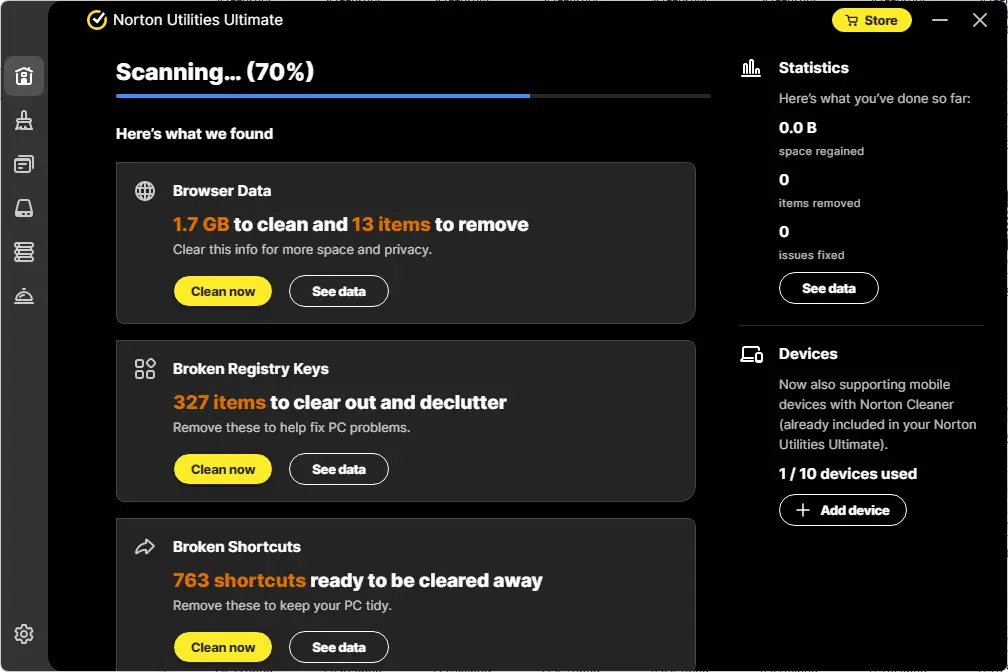
Before testing Norton Utilities Ultimate, we defined a clear baseline. We wanted the results to reflect normal, real-world use rather than problems caused by weak hardware or neglect. For that reason, we ran this test on a modern, high-performance system we regularly use for evaluation.
Our TestPC runs Windows 11 Pro, fully updated at the time of installation. The system uses a 13th-generation Intel Core i7 processor paired with 64 GB of RAM. This setup removes common bottlenecks. It also helps isolate software-related findings during testing Norton Utilities Ultimate.
We intentionally chose a mixed storage configuration. The system includes one SSD for the operating system and several traditional hard drives for data. This allowed us to observe how the tool handles different storage types during scanning and optimization checks.
We also want to stress one point. This PC was not neglected. We keep it clean, patched, and organized. We use it daily for testing software, managing media, and handling network services. In other words, it represents a well-maintained but actively used machine.
That context matters. If a cleanup tool only produces results on poorly maintained systems, its value remains limited. By running a Norton Utilities Ultimate test on a healthy PC, we could see how deep the scan really goes.
We performed a fresh installation of the software. We did not tweak settings before the first scan. Instead, we allowed default behavior to guide the process. This approach mirrors what most users experience when testing Norton Utilities Ultimate for the first time.
In the next section, we’ll walk through the installation and first launch experience, including what stood out immediately and what the software prompted us to do next.
Installation and First Launch Experience
We started testing Norton Utilities Ultimate with a clean installation. The setup process moved quickly and stayed straightforward. We downloaded the installer, ran it, and completed activation without interruptions. The process took only a few minutes from start to finish.
After installation, the software launched automatically. The interface loaded fast and felt responsive. We did not encounter delays or background setup tasks. This immediate readiness made the first impression positive.
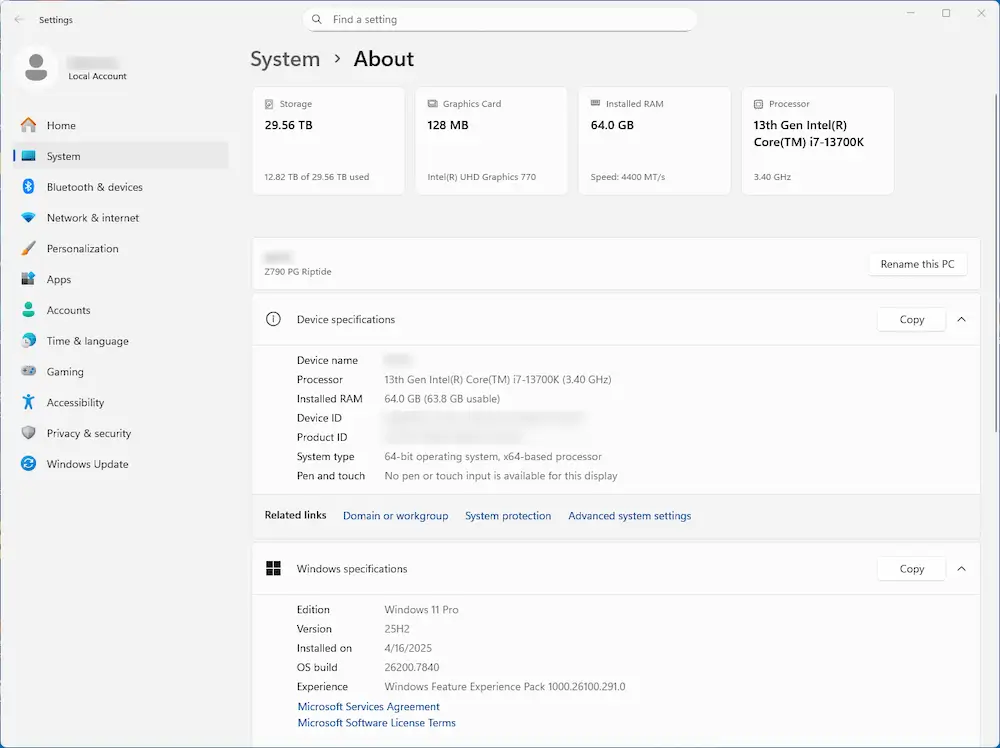
The software prompted us to run an initial scan right away. This step felt natural, not forced. We appreciated that the tool explained what the scan would check before starting. That clarity helped set expectations during our Norton Utilities Ultimate test.
The layout guided us clearly. Each scan category appeared with a short description. Instead of overwhelming us with options, the software encouraged a default scan. This approach suits first-time users, especially those testing Norton Utilities Ultimate without prior experience.
We did not change any settings at this stage. We wanted to observe default behavior. This matters because most users follow the same path during their first run. Any findings from this scan reflect how the software behaves out of the box.
Once the scan began, progress indicators appeared for each category. The software showed activity in real time. As a result, we could see which areas it analyzed first and how long each step took.
This first launch phase set the tone for the rest of the test. The software focused on visibility and guidance rather than urgency. In the next section, we’ll break down what the first scan actually checked and how broad the scan scope turned out to be.
First Scan Overview: What the Tool Actually Checked
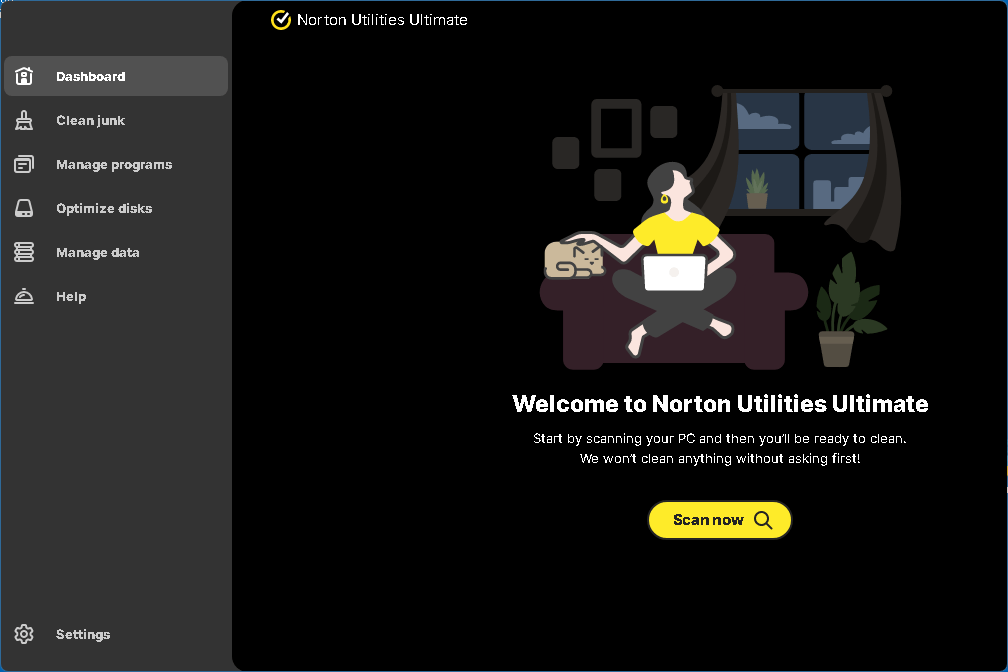
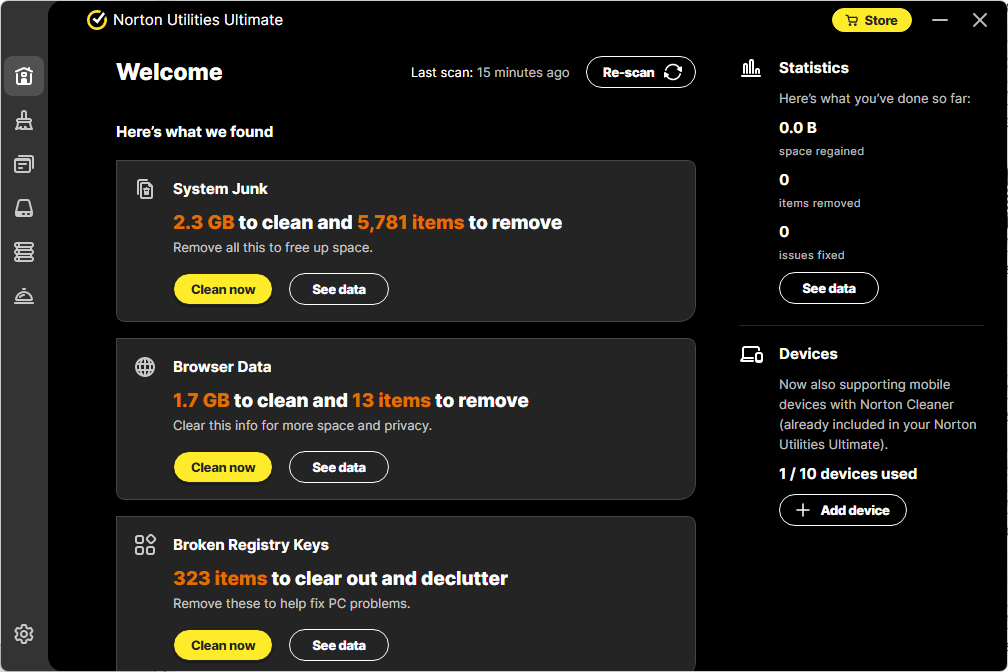
Once we started testing Norton Utilities Ultimate, the first scan began immediately. The software did not treat this as a single sweep. Instead, it broke the scan into clear, distinct categories. This structure made it easier to follow what the tool was doing at each step.
The scan covered several major areas at once. It checked browser data, system junk, registry entries, shortcuts, running processes, and disk status. Rather than hiding these actions, the interface showed them clearly as the scan progressed. Because of this, we never felt unsure about what was being analyzed.
During this Norton Utilities Ultimate test, one thing stood out early. The scan did not rush. Each category completed at its own pace. This behavior suggested a deeper inspection rather than a surface-level check. On a fast system like ours, the scan still took enough time to feel thorough.
We also noticed that the software grouped results logically. Instead of presenting one long list of issues, it separated findings by type. For example, system junk appeared in its own section, while registry-related items stayed isolated elsewhere. This organization helped us understand the results without confusion.
Another important detail involved transparency. As the scan ran, the software displayed counters and size estimates. These numbers updated in real time. As a result, we could see how much data the tool identified before any cleanup took place.
The scan did not attempt to clean anything automatically. It waited for review. This behavior mattered to us. During testing Norton Utilities Ultimate, we wanted to see whether the tool respected user control. At this stage, it clearly did.
By the time the first scan finished, we already had a strong sense of scope. The software looked beyond obvious clutter. It checked areas that many users never review manually. In the next section, we’ll start breaking down individual scan results, beginning with browser data and privacy-related findings.
Get started with Norton Utilities Ultimate at 42% off, bringing the first-year price down to just $39.99.
This 1-year subscription covers up to 10 devices, including Windows PCs, Android phones, and iOS devices. One plan helps you maintain performance across your entire setup.
👉 Get Norton Utilities Ultimate for $39.99 today
System Junk Scan: What We Found and How It Was Organized
As we continued testing Norton Utilities Ultimate, the system junk section revealed the most detailed results. This part of the scan dug deep into Windows and application-level files. It also showed how carefully the tool separates safe cleanup from risky actions.
The software grouped system junk into clearly defined categories. Instead of presenting one large total, it broke findings down by file type and source. This structure made the results easy to review and understand.
How the System Junk Categories Work
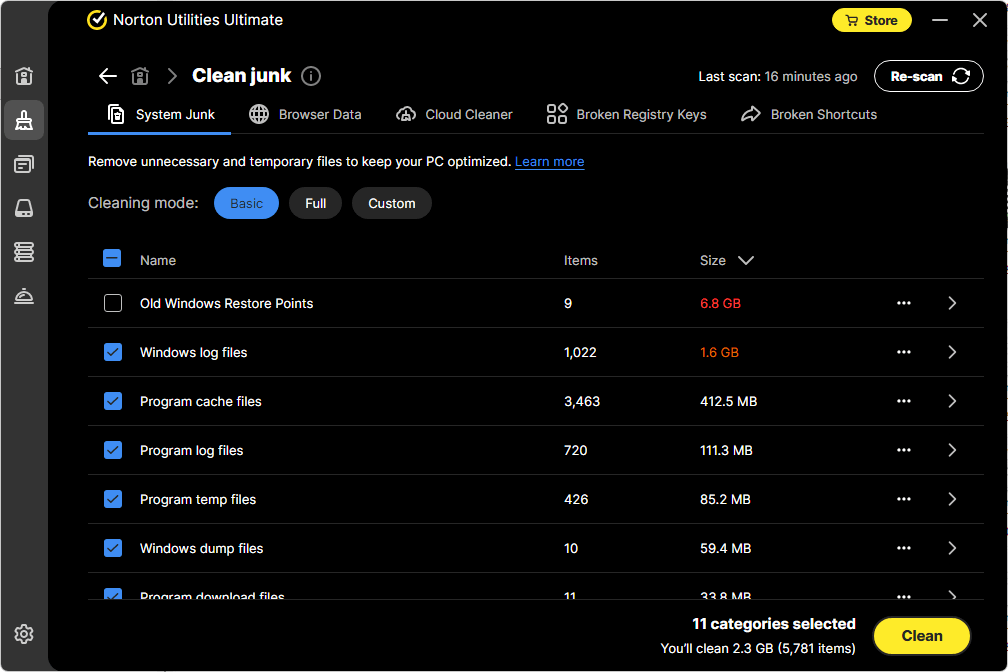
During this Norton Utilities Ultimate test, the scan identified 13 separate junk categories. These ranged from Windows cache and log files to program-level temporary data. Each category included both an item count and a size estimate.
This approach mattered. It showed where clutter actually comes from. Some categories contained thousands of small files. Others held fewer items but took up more space. Seeing both metrics side by side helped explain the real impact.
What the Tool Selected Automatically
Out of the 13 categories, the software selected 11 by default. These included Windows log files, cache files, program temp files, and setup leftovers. All of these items shared one thing in common. They served no active purpose during normal system use.
The automatic selection felt conservative. The tool did not attempt to remove everything it found. Instead, it focused on files that posed little to no risk. This behavior reinforced trust while testing Norton Utilities Ultimate.
What It Left Untouched and Why
One category stood out immediately. The scan detected old Windows restore points totaling several gigabytes. However, the software did not select them for removal.
That decision felt intentional. Restore points can provide recovery options. Removing them may free space, but it also reduces safety. By leaving them unchecked, the tool showed restraint. This moment clearly demonstrated how the software balances cleanup with caution.
What This Section Taught Us
This part of the scan highlighted an important reality. Even powerful, well-maintained systems accumulate junk at many levels. Windows itself creates logs and cache files continuously. Applications add their own layers of temporary data.
Manual cleanup of these files would take significant time. It would also require knowing which files are safe to remove. During testing Norton Utilities Ultimate, the system junk section showed real value by handling this complexity transparently.
Next, we’ll move into registry-related findings, where the scan examined configuration data rather than files.
Browser Data and Privacy Findings
When we continued testing Norton Utilities Ultimate, the browser data results appeared first. This section focused on data created through everyday browsing. Even on a carefully maintained system, the findings proved meaningful.
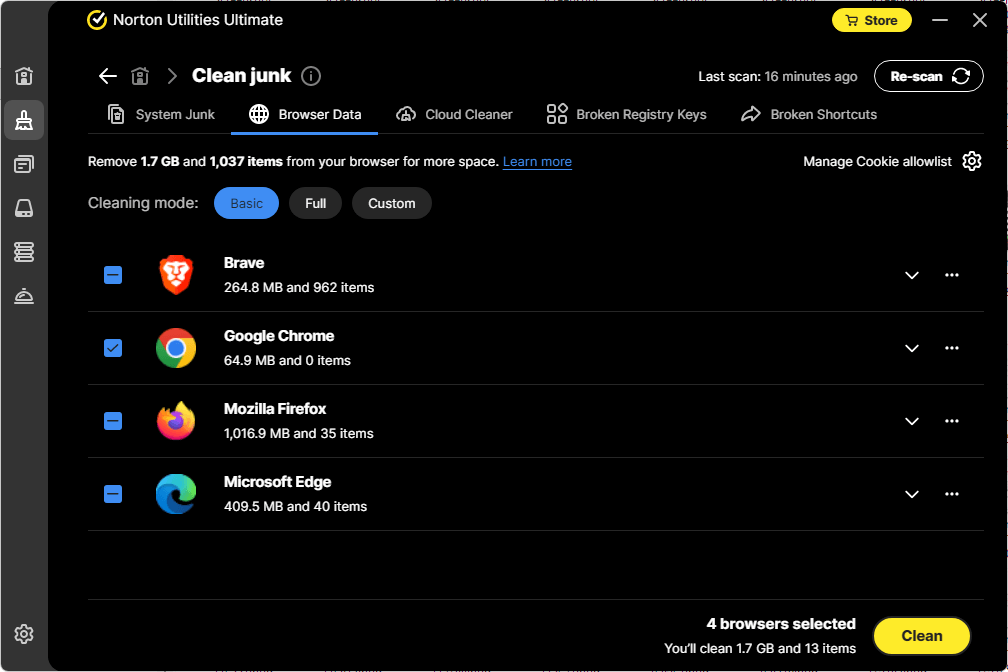
The scan checked stored browser history, cached files, cookies, and related data. These files build up quietly over time. As a result, users often overlook them during manual cleanup. Seeing this category broken out clearly helped explain where the data came from.
What stood out during this Norton Utilities Ultimate test was the total size. The software identified over a gigabyte of browser-related data ready for removal. That number surprised us. We actively manage this system and still found a large amount of accumulated data.
The tool also counted individual items. Instead of showing only a size total, it listed how many entries contributed to the clutter. This made the results feel concrete rather than abstract. We could see that many small files added up quickly.
Privacy plays a role here as well. Browser data does not only affect storage. It also stores traces of activity. By separating this category, the software highlighted both performance and privacy impact without mixing the two.
Another positive detail involved restraint. The tool did not mark everything aggressively. It presented the findings and waited for confirmation. This approach felt appropriate during testing Norton Utilities Ultimate, especially for users who prefer to review before cleaning.
This section reinforced an important point. Even well-kept systems accumulate browser data faster than expected. In the next section, we’ll move into system junk results, where the scan went much deeper into Windows and application-level files.
Broken Registry Keys: What the Scan Detected
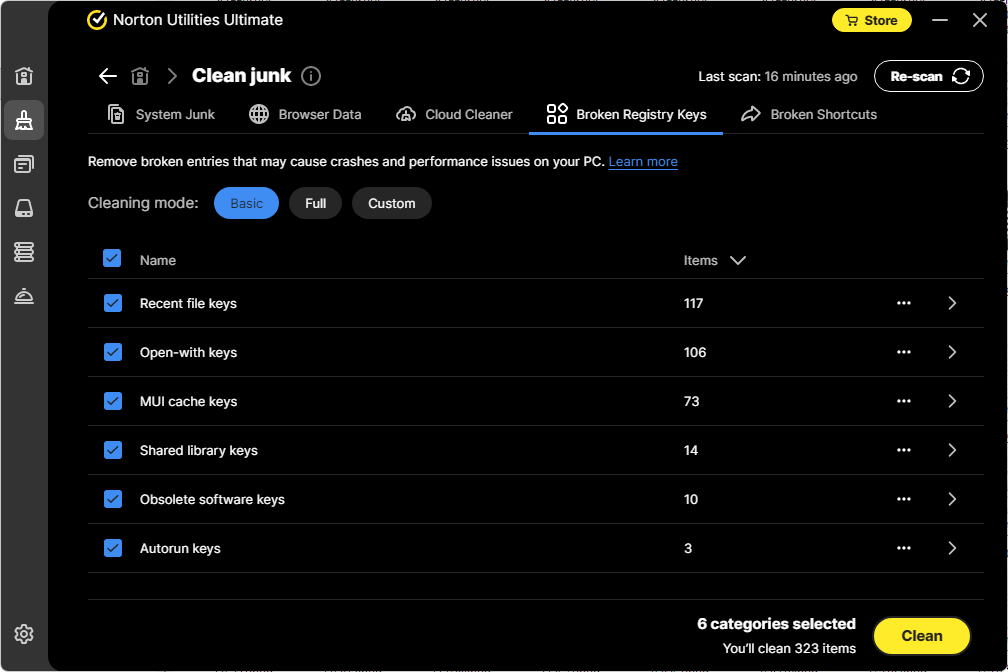
As we moved further into testing Norton Utilities Ultimate, the registry scan added another layer of detail. This section focused on configuration data rather than files. While registry issues rarely cause dramatic slowdowns, they still affect system cleanliness and consistency.
The software approached this area methodically. Instead of presenting a single total, it grouped findings into six clear categories. This structure made the results easier to interpret, especially for users who prefer understanding what kind of entries exist.
The categories included recent file keys, open-with keys, MUI cache keys, shared library keys, obsolete software keys, and autorun keys. Each category pointed to entries that no longer linked to valid files or programs.
What stood out during this Norton Utilities Ultimate test was volume without alarm. The scan identified hundreds of registry entries, yet it did not treat them as critical errors. The interface framed them as cleanup opportunities rather than urgent problems.
That tone matters. Registry tools often exaggerate impact. Here, the software explained that these entries came from normal activity. Software installs, removals, and updates leave traces behind. Over time, those traces lose relevance.
We also appreciated how the tool avoided technical jargon. It did not expect users to know registry internals. Instead, it explained categories in simple terms and allowed review before any action.
During testing Norton Utilities Ultimate, this section felt more about organization than speed. Clearing outdated registry references helps keep configuration data tidy. While performance gains may be subtle, long-term stability benefits from this cleanup.
In the next section, we’ll look at broken shortcuts, which often result from similar software changes but affect usability more than configuration.
With a 42% savings, Norton Utilities Ultimate costs just $39.99 for the first year.
This annual subscription covers up to 10 Windows, Android, and iOS devices, making it a cost-effective way to maintain performance across multiple systems.
👉 See full details and secure the discounted price
Broken Shortcuts: Cleanup That Improves Organization
As we continued testing Norton Utilities Ultimate, the broken shortcuts section addressed a different kind of clutter. This part of the scan focused on usability rather than performance. It looked for shortcuts that no longer point to valid files or locations.
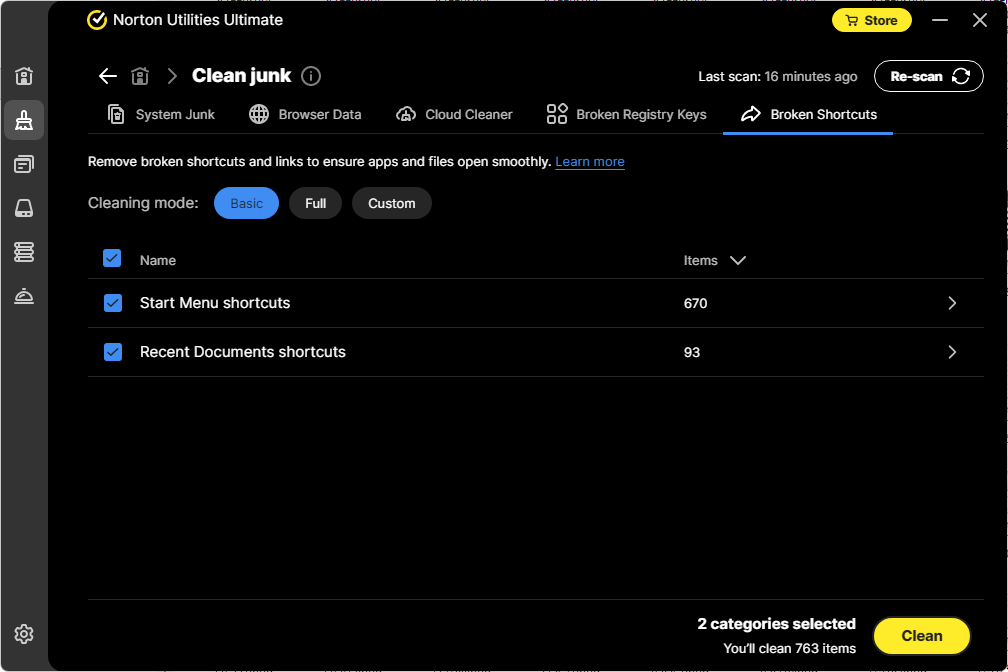
The software grouped shortcut issues into two clear categories. These included Start Menu shortcuts and Recent Documents shortcuts. Both categories commonly collect leftovers when software gets removed or files change location.
During this Norton Utilities Ultimate test, the number of detected shortcuts stood out. The scan flagged hundreds of shortcuts that no longer worked. This result did not surprise us. We install and remove software regularly on TestPC, which often leaves shortcuts behind.
Broken shortcuts do not slow a system directly. However, they create confusion. Clicking a shortcut that leads nowhere wastes time and interrupts workflow. Over time, menus and lists feel cluttered and less reliable.
The software handled this section with the same restraint seen elsewhere. It clearly explained what each shortcut type represented. It also avoided aggressive language. Instead of calling them errors, it framed them as items ready for cleanup.
We found this section useful for long-term organization. Clearing invalid shortcuts helps keep the Start Menu clean and Recent Documents lists relevant. While this cleanup does not boost speed, it improves daily usability.
During testing Norton Utilities Ultimate, this section reinforced a broader theme. The tool does not chase dramatic performance claims. Instead, it focuses on small, meaningful improvements that add up over time.
Next, we’ll move into the Processes section, where the software evaluates running programs based on their actual impact on system resources.
Processes Section: Seeing Real Resource Impact
As we continued testing Norton Utilities Ultimate, the Processes section shifted focus from stored data to active behavior. This part of the tool examined programs running in the background and ranked them by how much they burden the system.
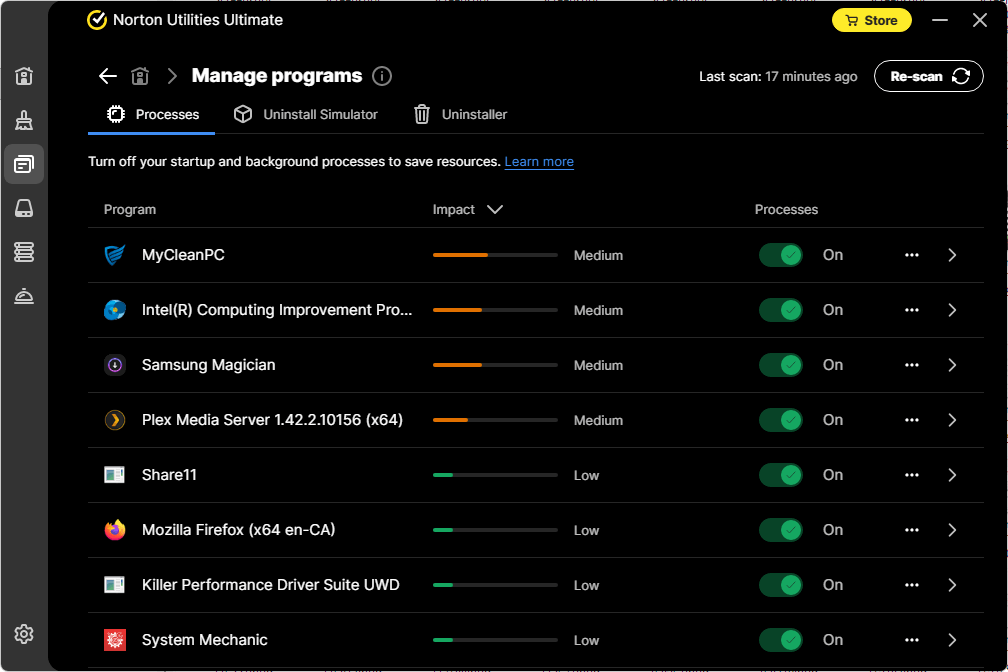
The layout made this section easy to understand. Instead of raw CPU or memory numbers, the software classified each process by impact level. In our case, all listed items fell into Medium or Low impact categories. We did not see any entries marked as high impact.
That distinction mattered. It showed that the tool does not exaggerate findings. During this Norton Utilities Ultimate test, the Processes view felt informative rather than alarmist.
Several familiar programs appeared in the Medium impact group. These included MyCleanPC, which we installed intentionally for testing, Intel Computing Improvement Program, Samsung Magician, and Plex Media Server. Each of these runs background services by design. Seeing them listed helped confirm that the software correctly identified ongoing resource use.
The tool did not force action. Instead, it explained why each process appeared and how it affected the system. This allowed us to decide whether a process made sense for our use case. For example, Plex Media Server serves a clear purpose on our network, so disabling it would not make sense for us.
We also appreciated how this section encouraged awareness rather than cleanup. Turning off background processes can improve responsiveness. However, it can also break expected functionality. By ranking impact instead of issuing blanket recommendations, the software supported informed decisions.
We captured a screenshot of this section to show exactly how the impact ratings appear in practice. That visual reinforces how transparent the tool remains during testing Norton Utilities Ultimate.
Next, we’ll look at disk optimization results, where the software evaluated both our SSD and multiple hard drives for potential issues.
Disk Optimization Results: What the Scan Reported
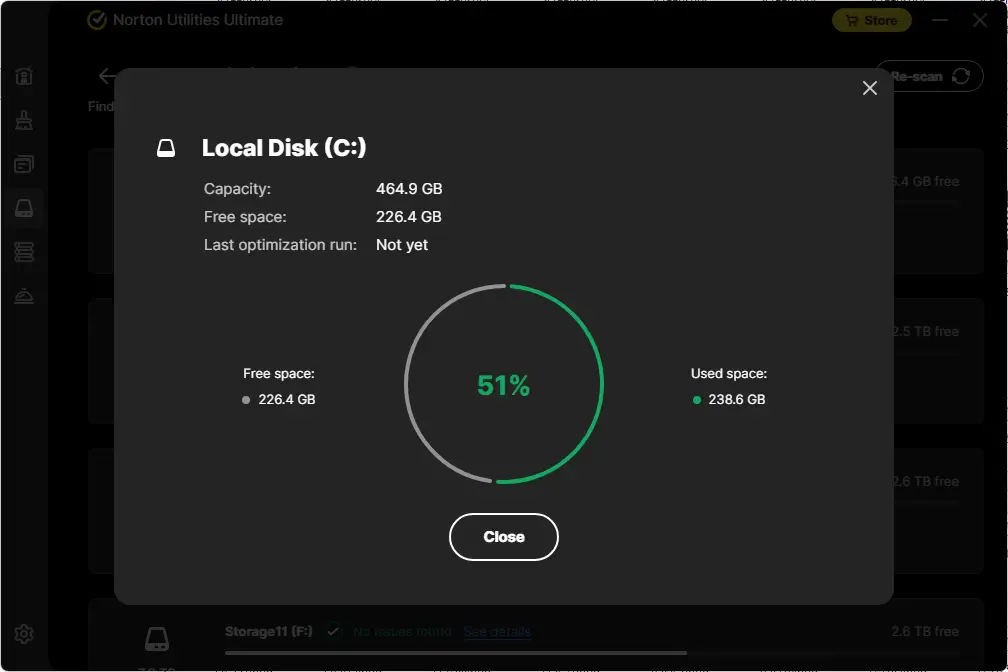
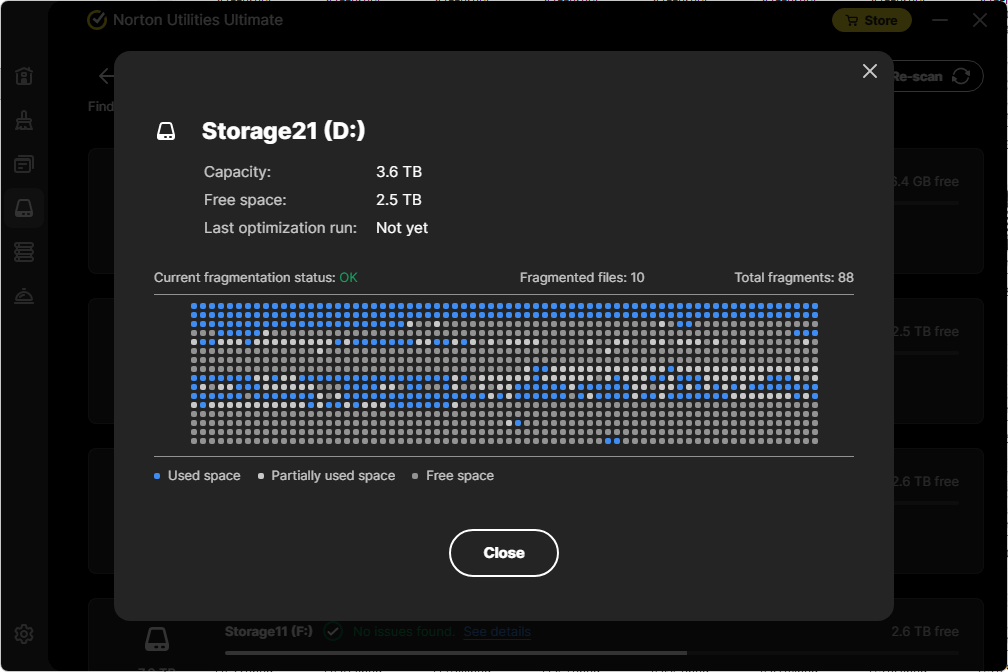
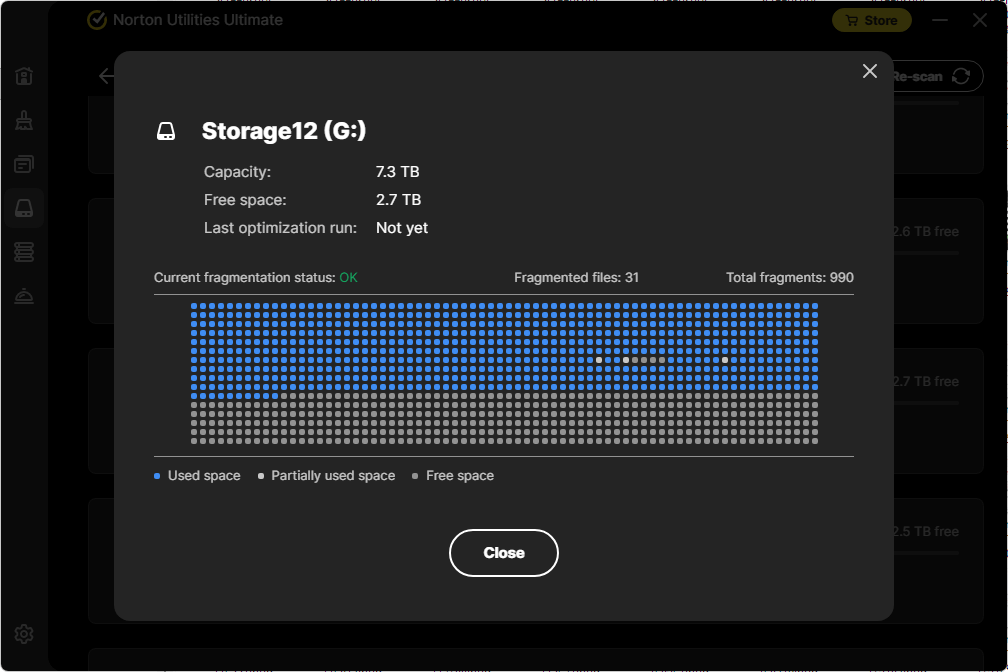
As we moved deeper into testing Norton Utilities Ultimate, the disk optimization section provided a clear checkpoint. This part of the scan focused on storage health rather than cleanup. It examined both our system drive and additional data drives for issues that could affect performance.
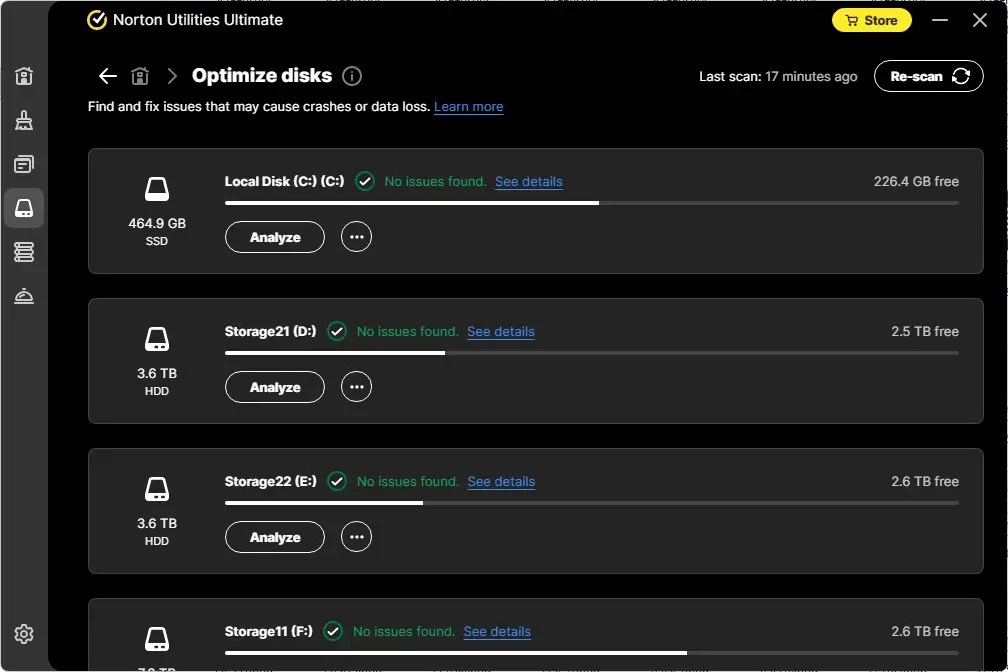
Our TestPC uses a mixed storage setup. The operating system runs on an SSD, while six additional hard drives handle data and media. This configuration gave us a good opportunity to see how the tool treats different drive types.
The scan completed quickly. More importantly, it reported no issues found across all drives. Neither the SSD nor the hard drives required optimization at the time of testing. That result might sound uneventful, but it actually says a lot.
During this Norton Utilities Ultimate test, the software did not attempt unnecessary actions. It did not recommend defragmenting the SSD. It also did not push optimization on drives that already appeared healthy. This restraint matters, especially for users who worry about tools doing more harm than good.
For traditional hard drives, optimization can help when fragmentation builds up. However, running it without need wastes time and resources. The software clearly recognized that our drives did not benefit from intervention at this stage.
This section reinforced a consistent theme. The tool prefers assessment before action. It checks conditions, reports findings, and steps back when no improvement makes sense. That behavior builds confidence during testing Norton Utilities Ultimate.
In the next section, we’ll step back and summarize what these individual scan results reveal when viewed together, especially on a modern and well-maintained system.
Simplify performance maintenance with Norton Utilities Ultimate, now available for $39.99 in the first year after a 42% discount.
The 12-month subscription supports up to 10 devices across Windows, Android, and iOS, so you don’t need separate tools for each system.
👉 View the 42% discount on Norton Utilities Ultimate
Settings and Customization: What We Reviewed During Testing
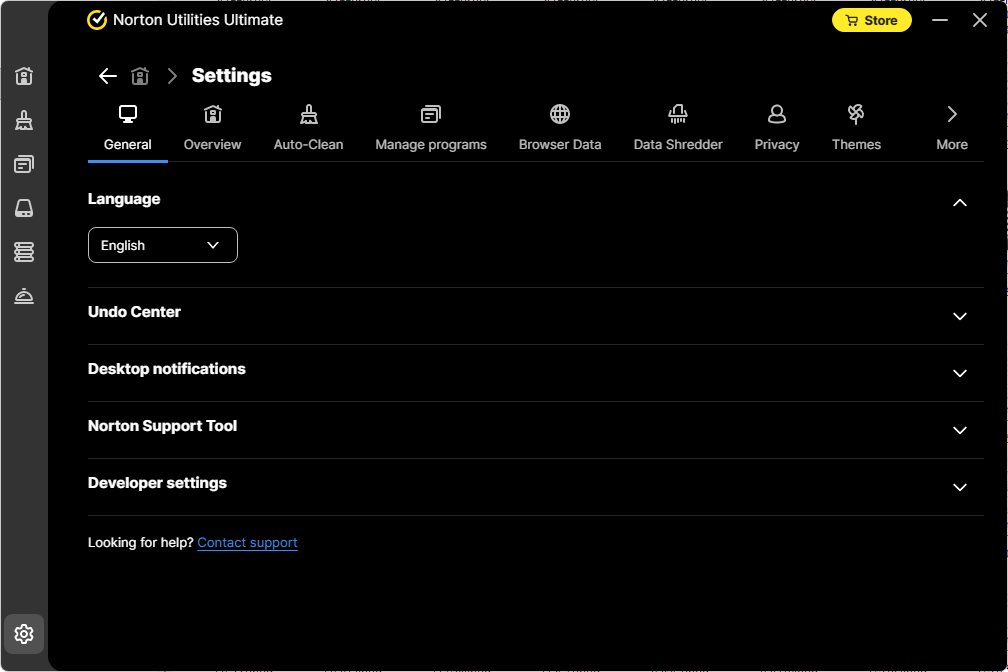
While testing Norton Utilities Ultimate, we opened the Settings panel to understand how much control the software actually provides. The default configuration works well. However, real testing requires checking what can be adjusted.
The Settings window organizes options into clear sections. Each category controls a specific part of the product. This structure made it easy to explore without guessing.
Below is what we reviewed in detail.
General Settings
The General section includes language selection and backup behavior through the Undo Center.
We confirmed that the interface language can be changed easily. However, not all interface elements translate fully. Some text remains in English.
The Undo Center allows users to choose which categories get backed up before changes occur. You can also define how long backups remain stored. This matters during a Norton Utilities Ultimate test because rollback safety builds confidence.
The section also includes access to the Norton Support Tool. This tool allows users to send logs if technical issues arise.
Developer settings appear here as well. These control how features behave when the application runs in the background. Norton recommends keeping these enabled, and we agree.
Overview Customization
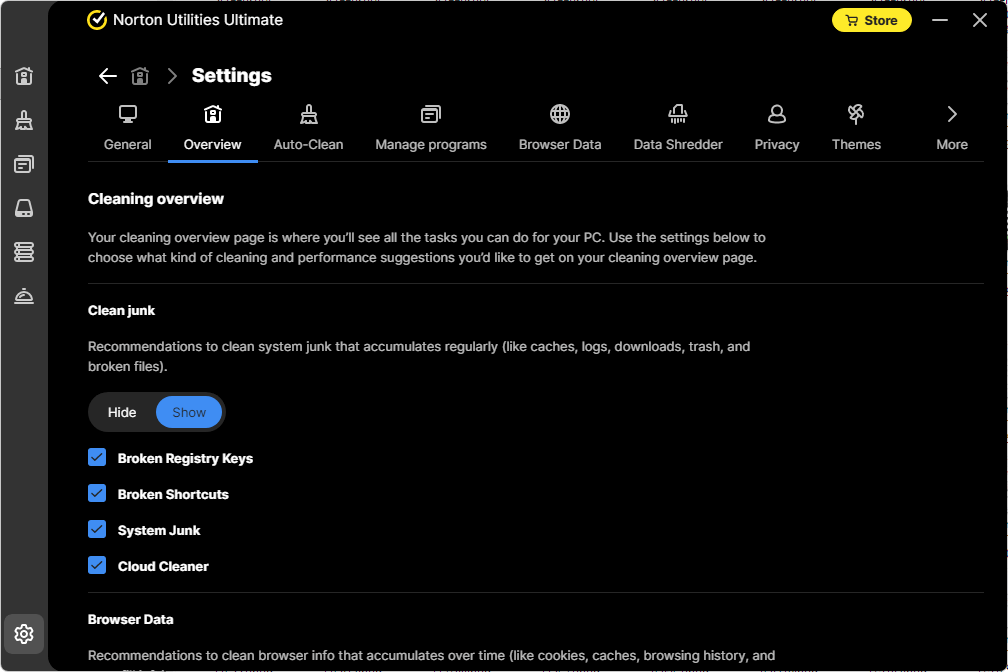
The Overview section lets users choose which features appear on the dashboard.
During testing Norton Utilities Ultimate, we adjusted dashboard visibility to focus on performance-related sections. The interface updated immediately. This customization improves workflow, especially for frequent users.
Auto-Clean
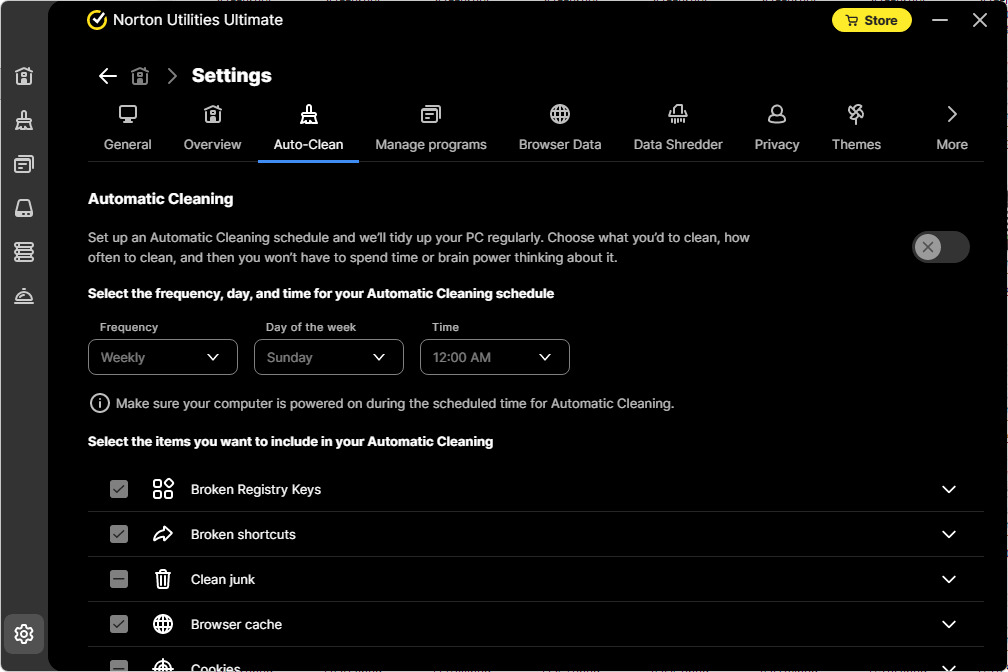
The Auto-Clean tab controls Automatic Cleaning.
This feature runs silently in the background. It removes system junk, broken shortcuts, registry items, and browser data.
We tested the cleaning interval options. The software allows daily, weekly, bi-weekly, or monthly schedules. You can also define the exact day and time.
Importantly, you can choose which categories get cleaned automatically. This control prevents overly aggressive maintenance.
This part of the Norton Utilities Ultimate test showed how automation remains optional rather than forced.
Manage Programs
The Manage Programs section connects to the Uninstall Simulator.
Here, users define how long isolated programs remain before automatic removal. Options range from never to one year.
We left this setting unchanged during testing Norton Utilities Ultimate. However, users who frequently test software may find timed removal helpful.
Browser Cleaner
The Browser Cleaner settings allow more granular privacy control.
Under Cleaning delay, users choose how long to retain browsing history and cookies. Options include always clean, or retain for 7, 14, or 30 days.
We tested different delay settings and confirmed that the tool respects the selected window.
The Cookies Allowlist allows users to exclude specific websites. This feature prevents unwanted logouts from trusted sites. For practical use, this is one of the more valuable customization options.
Data Shredder
The Data Shredder section offers advanced deletion control.
Users can add Data Shredder to the Windows right-click menu. This makes secure deletion accessible directly from File Explorer.
The shredding priority setting allows either low or high resource usage.
More importantly, the shredding algorithm can be selected:
- Random algorithm (single pass)
- Gutmann algorithm (35 passes)
- DoD 5250.22-M algorithm (3 passes)
During testing Norton Utilities Ultimate, we confirmed these options appear clearly with explanations. This section caters more to advanced users.
Privacy Settings
The Privacy section allows users to control app usage data sharing.
Users can choose whether to share anonymized data with Norton or third-party analytics tools.
We verified that both options remain optional and clearly labeled.
Theme
The Theme section lets users choose between Light, Dark, or Auto.
Auto mode matches the Windows system theme. During our Norton Utilities Ultimate test, the interface switched correctly when Windows theme changed.
This setting does not affect performance. However, it improves usability.
My Subscription
This section displays subscription status and expiration date.
If fewer than 30 days remain, a Renew option appears. During testing Norton Utilities Ultimate, this section updated correctly based on account status.
Updates
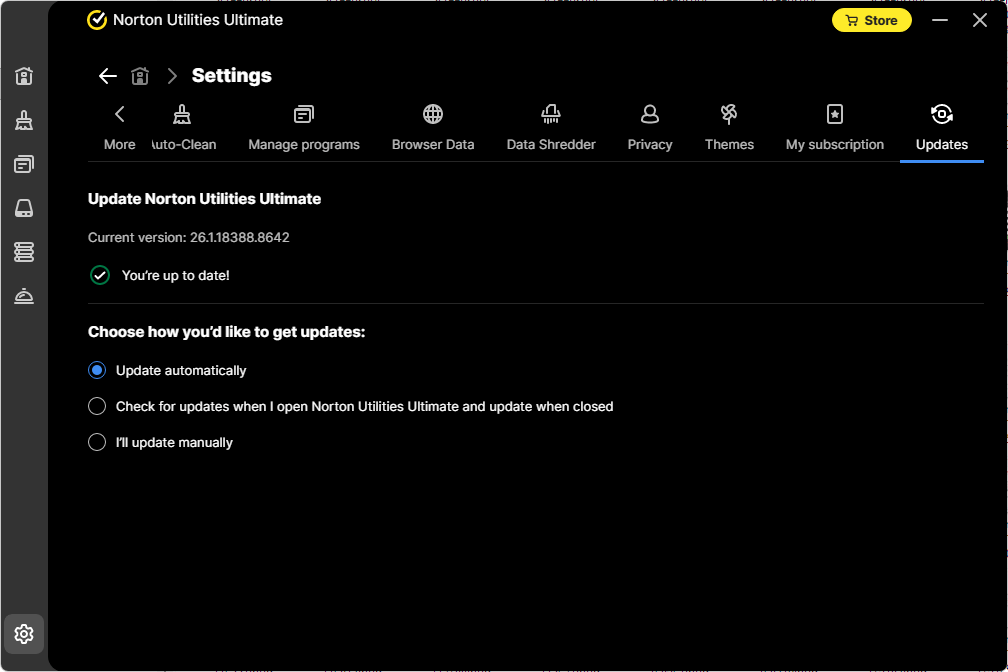
The Updates section controls how the software receives program updates.
Users can choose:
- Automatic background updates (recommended)
- Check on open and update on close
- Manual updates only
We kept automatic updates enabled. For a maintenance tool, staying current matters.
What the Settings Section Reveals
Exploring Settings during our Norton Utilities Ultimate test reinforced an important conclusion. The software does not operate as a rigid one-click cleaner. Instead, it provides layered control.
Casual users can leave defaults untouched. Advanced users can fine-tune automation, privacy, cleanup scope, and secure deletion. That flexibility strengthens credibility. It shows that the tool prioritizes controlled optimization rather than forced cleanup.
What These Results Show on a Well-Maintained System
After completing testing Norton Utilities Ultimate across all scan sections, a clear picture emerged. Even a modern, high-performance system accumulates clutter in many small ways. None of the issues we saw qualified as critical. However, together they explained how systems slowly lose efficiency over time.
One important takeaway involved scope. The software did not limit itself to obvious areas. It checked files, configuration data, shortcuts, background activity, and disk health. Each area contributed a different type of insight. As a result, the scan felt comprehensive rather than superficial.
Another key point involved restraint. During this Norton Utilities Ultimate test, the tool did not push aggressive cleanup.
- It left restore points untouched
- It avoided unnecessary disk optimization
- It also waited for user input before applying changes
This behavior suggests a design focused on safety instead of shortcuts.
The results also highlighted how fragmentation happens at the software level. Browser data, logs, caches, and leftover references build up even when users stay organized. Manually tracking all of this would take time and attention. Automation helps bridge that gap.
We also noticed how well the software explained its findings. Categories, counts, and size estimates gave context. Instead of vague warnings, the tool showed why something appeared and what kind of data it involved. That clarity matters for trust.
Overall, this test confirmed something important. Optimization tools add value even when systems run well. They do not only rescue broken machines. They help maintain order, visibility, and consistency over time. In the next section, we’ll explain why these findings matter even more for everyday users with older or less carefully maintained devices.
Why These Findings Matter for Everyday Users
Our experience testing Norton Utilities Ultimate on a well-maintained system provides useful context. However, most users do not manage their PCs with the same level of care. That difference changes how impactful these results become.
On everyday systems, clutter builds faster. Browser data grows unchecked. Temporary files stay behind after updates. Programs install background services that users never notice. Over time, these small issues combine and affect responsiveness.
What we saw during this Norton Utilities Ultimate test represents a best-case scenario. Even then, the software found meaningful cleanup opportunities. On older or less organized systems, the volume of findings would likely increase.
This matters because manual cleanup rarely happens. Most users do not review registry leftovers, broken shortcuts, or background processes. They also avoid disk maintenance unless problems appear. As a result, performance slowly degrades.
Automation changes that equation. By scanning regularly and presenting clear results, the software helps users stay ahead of problems. It also reduces guesswork. Instead of experimenting with settings, users see what actually needs attention.
The test also showed that the tool respects system boundaries. It does not force changes. It explains impact and leaves decisions to the user. For everyday users, that balance reduces risk while still delivering value.
Overall, these findings highlight the practical role of maintenance software. It supports consistency rather than dramatic fixes. For many users, that steady improvement matters more than instant speed gains.
Takeaway From Our Real-World Norton Utilities Ultimate Test
After completing this round of testing Norton Utilities Ultimate, one conclusion stood out clearly. The software focuses on maintenance, visibility, and restraint rather than dramatic claims. That approach shaped every part of our experience.
We did not see exaggerated warnings or forced actions. Instead, the tool identified real clutter, explained where it came from, and waited for review. This behavior felt consistent across all scan areas. As a result, the software earned trust rather than demanding it.
Another key takeaway involved depth. Even on a powerful and well-maintained system, the scan uncovered meaningful cleanup opportunities. Browser data, system junk, registry leftovers, and broken shortcuts all existed quietly in the background. This confirmed that no system stays perfectly clean through manual effort alone.
We also appreciated how the tool handled boundaries:
- It avoided unnecessary disk optimization
- It left restore points untouched
- It ranked running processes instead of disabling them automatically
These choices showed careful design rather than aggressive optimization.
Testing Norton Utilities Ultimate reinforced a broader point. Optimization tools work best when they support ongoing upkeep, not emergency repairs. This software fits that role well. It helps users understand their systems and maintain order over time.
Overall, this real-world test validated what feature lists cannot show. The value lies not in one big fix, but in many small, informed decisions. For users who want clarity and consistency across their devices, this approach makes practical sense.
Keep your devices clean, organized, and responsive with Norton Utilities Ultimate, now 42% off at $39.99 for the first year.
One 1-year subscription protects and optimizes up to 10 devices, including Windows PCs and mobile devices.
👉 Start your 1-year Norton Utilities Ultimate subscription